Hello to the community,
After many hesitations, I decide to install Gladys, Docker installation under Debian 10 and Gladys in the process. I encounter a problem to start Gladys, I type the IP of my Gladys machine and it displays the screen indicating to me
This is the default home page used to test the proper functioning of the Apache2 server after installation on Debian systems. If you can read this page, it means that the HTTP Apache server installed on this site is working correctly. You must replace this file (located at /var/www/html/index.html) before continuing to use your HTTP server.
The default configuration of Apache2 of Debian is different from the default configuration upstream and divided into several optimized files for interaction with the Debian tools. The configuration system is fully documented in /usr/share/doc/apache2/README.Debian.gz. Refer to this for complete documentation. The documentation of the web server itself can be found by accessing the manual if the apache2-doc package has been installed on this server.
The layout of the configuration for an Apache2 web server installation on Debian systems is as follows:
/etc/apache2/
|-- apache2.conf
| -- ports.conf |-- enabled for mods | |-- *.load | – *.conf
|-- enabled conf
| -- *.conf |-- enabled for sites – *.conf
Can you help me before making a mistake or mistakes. Novice, thank you in advance.
Hello @pierre-gilles,
Why not consider running Gladys on a port other than 80 by default (Domoticz and Home Assistant are on other ports)? Are there technical reasons for this?
Certainly, it would be better to be able to modify it easily in Gladys rather than having to tinker for that! It would be simpler for the « keyboard delicate » ones, right?
And when did we do the install on the Raspberry? I think it would be great to have it in the ‹ Settings › section if it’s not a complicated development, but well!
The raspberry gladys image is already pre-configured, there is no port conflict.
To my knowledge, the foundation’s image does not have Apache installed by default.
This development is possible but time-consuming and adds little value, not to mention the risk factor as it requires destroying and recreating the container.
I agree with @VonOx, I don’t see the point of changing the port afterwards.
Either you are a beginner and you launch Gladys via a pre-configured image that is already set up with the right settings. In which case, you don’t even know what a port is, and you don’t need to worry about it. No consumer product talks about ports to its users.
Or you launch Gladys manually (it’s you who types the docker run command), in which case you can easily set the port adapted to your environment. If you made a mistake that causes a port conflict like here, being able to change the port in the interface won’t change anything because you don’t have access to the interface (Gladys doesn’t even start)
So for me the feature request doesn’t make sense, I think we can remove it ^^
It looks like you didn’t follow the Docker installation procedure; your user needs to be part of the docker group to have the correct permissions. By the way, you could have stayed on Debian; you just needed to uninstall Apache.
Bah I just had to be a brute …only do what is written!
It was indeed missing (I am on a Beelink BT3 Pro NUC)
sudo usermod -aG docker $USER
newgrp docker
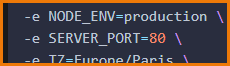
Now it works …on port 8021 as I wanted! Should add the link in the doc for the « no-vices »!
I can finally install NODE-RED and move forward with the connection to my IPX
And Debian, well I’ll retest later because yesterday no terminal access after the install (apparently a loopback issue on the HDMI that would be fixed with an « dongle » HDMI)
Same with normal Ubuntu, it’s only with the Lite that it was OK at the same time I didn’t dig deeper into the matter…
Bonus: my super SONOFF Zigbee USB key on sale for €8.99 at domo is recognized!
Thanks anyway for the help
Great, the installation of node-red went smoothly by copying and pasting as in the documentation
Apart from that, at the end, it would be good to mention how to access it for those who don’t know. So to access it, it’s in the browser at http://gladys-ip:1880!




 …only do what is written!


