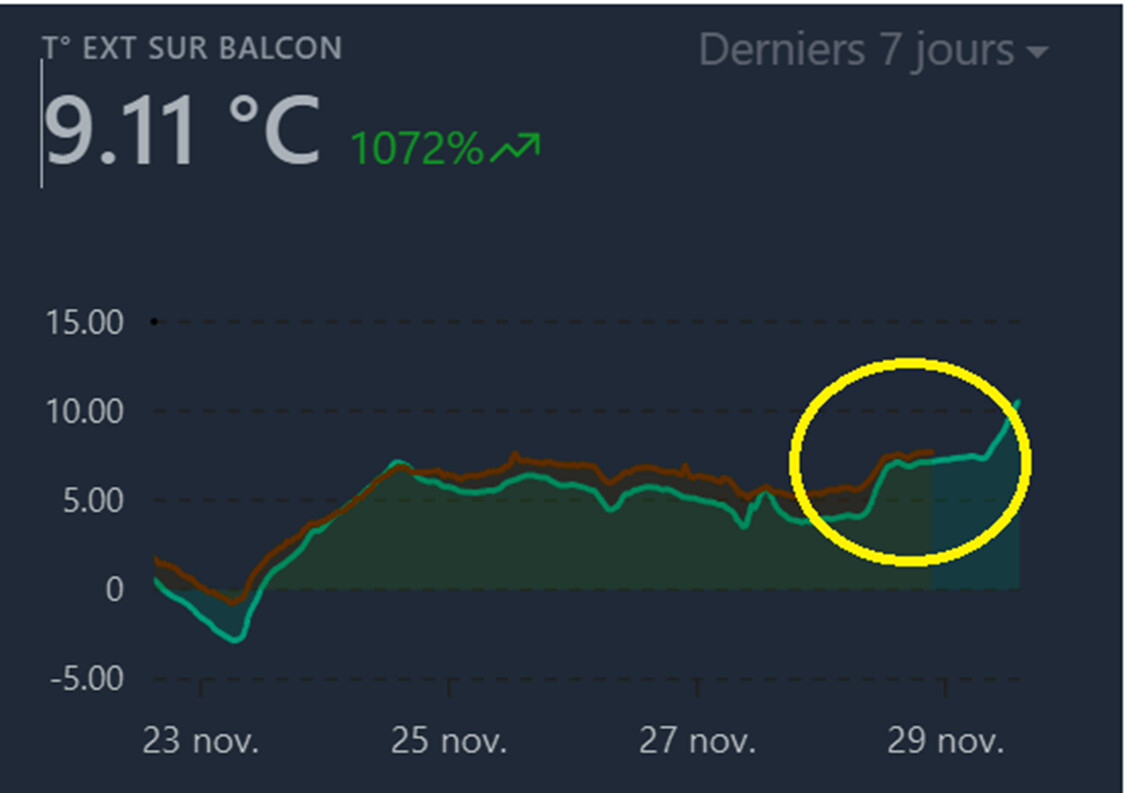
Hello everyone!
I’m offering a short tutorial today on how to download a CSV of all the historical values of a sensor.
To do this, we’ll use Gladys’s HTTP API.
Step #1: Download an HTTP client
I recommend Yaak.
Step #2: Retrieve a token
Gladys’s API is secured, so you’ll need to get a token.
Create a new request in Yaak at the URL
Méthode : POST
URL : http://IP_DE_VOTRE_INSTANCE_GLADYS/api/v1/login
Body Type : JSON

Body :
{
  "email": "VOTRE_EMAIL",
  "password": "VOTRE_MOT_DE_PASSE"
}
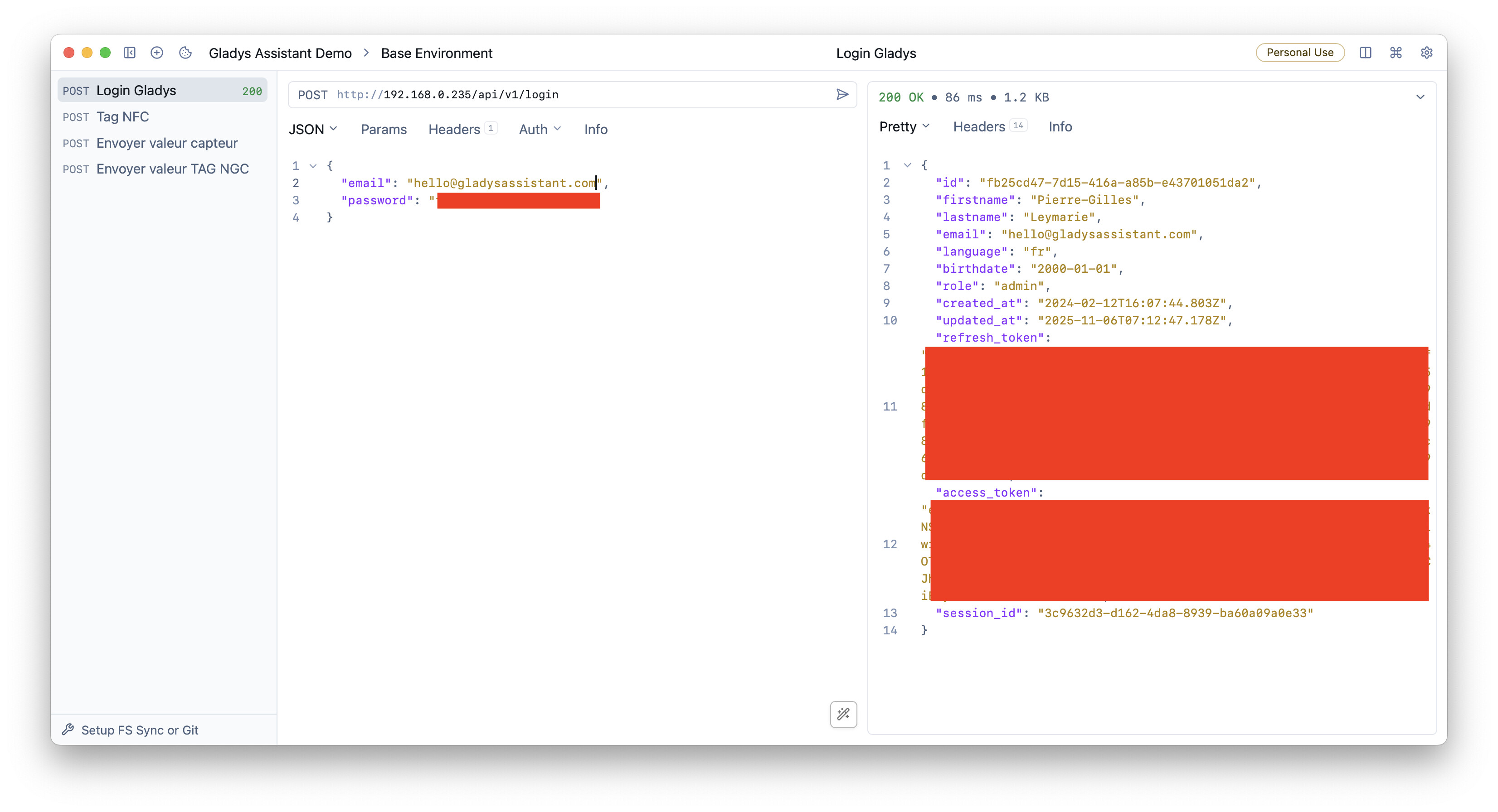
Send the request; you should receive an « access_token » on the right — that’s what we care about:
Step #3: Retrieve the selector of the sensor you’re interested in
Méthode : GET
URL : http://IP_DE_VOTRE_INSTANCE_GLADYS/api/v1/device
Pas de body
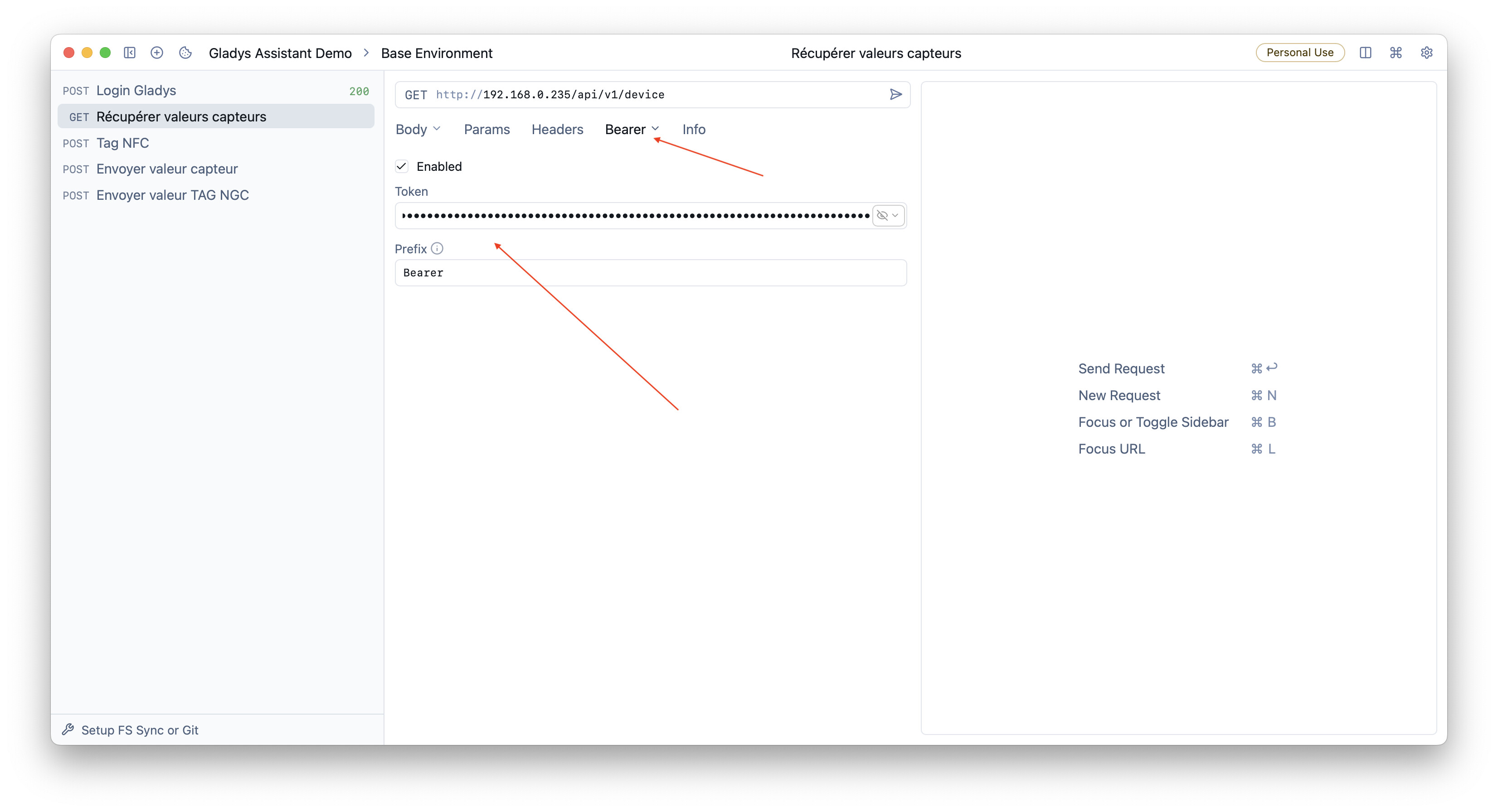
In the « Auth » tab, click « Bearer token » and copy your access_token:
Send the request; you should get a response like this:

You can use « Ctrl/Cmd + F » to search for a device.
Then find the « selector » field of the feature you’re interested in. It’s the unique identifier that will allow us to query that device.
Step #4: Download the entire history of this device
Create a new request in Yaak:
Méthode : GET
URL : http://IP_DE_VOTRE_INSTANCE_GLADYS/api/v1/device_feature/aggregated_states
Params :
   - interval : La durée que vous voulez récupérer en minutes.
        (Ex : Pour aller chercher la dernière heure de valeurs, mettez 60)
        (Ex : Pour aller chercher la dernière journée, mettez 1440, car 60*24)
  - max_states : Le nombre maximal d'états que vous voulez retourner.
          Si vous voulez l'exhaustivité de la donnée sans échantillonnage, mettez une valeur énorme (ex : 1000000000000)
  - device_features : La liste de selector de feature séparés par des virgules. Vous pouvez en mettre un seul
In my case, it looks like this:
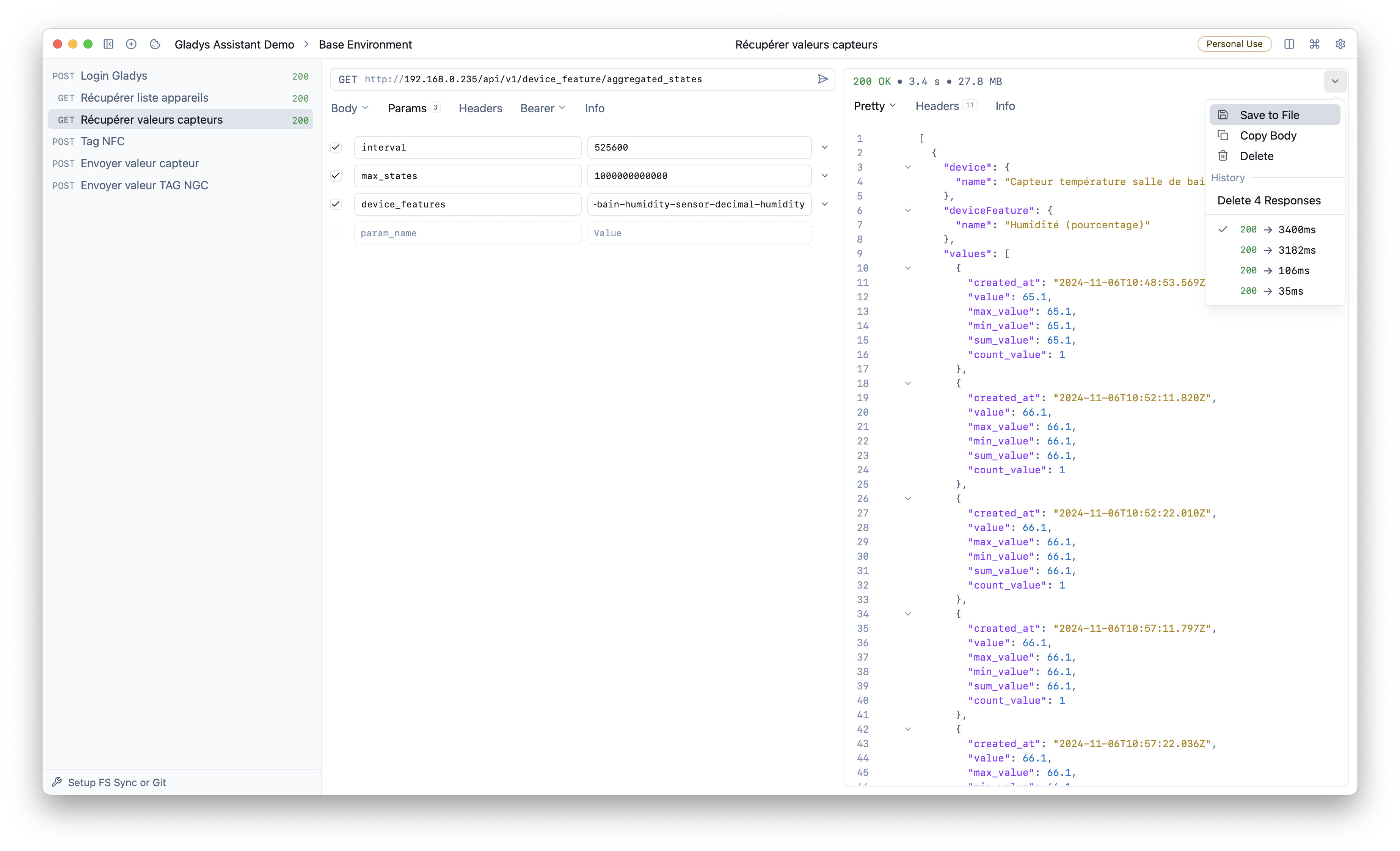
I’m fetching the last year’s values, with all values, for my humidity sensor.
Click « Save to file » on the right to save the values to disk.
Note: Be careful not to download the entire world — your Gladys instance must load the JSON in memory, so if you download all devices from the start, it can be a lot 
Step #5: Converting JSON to CSV
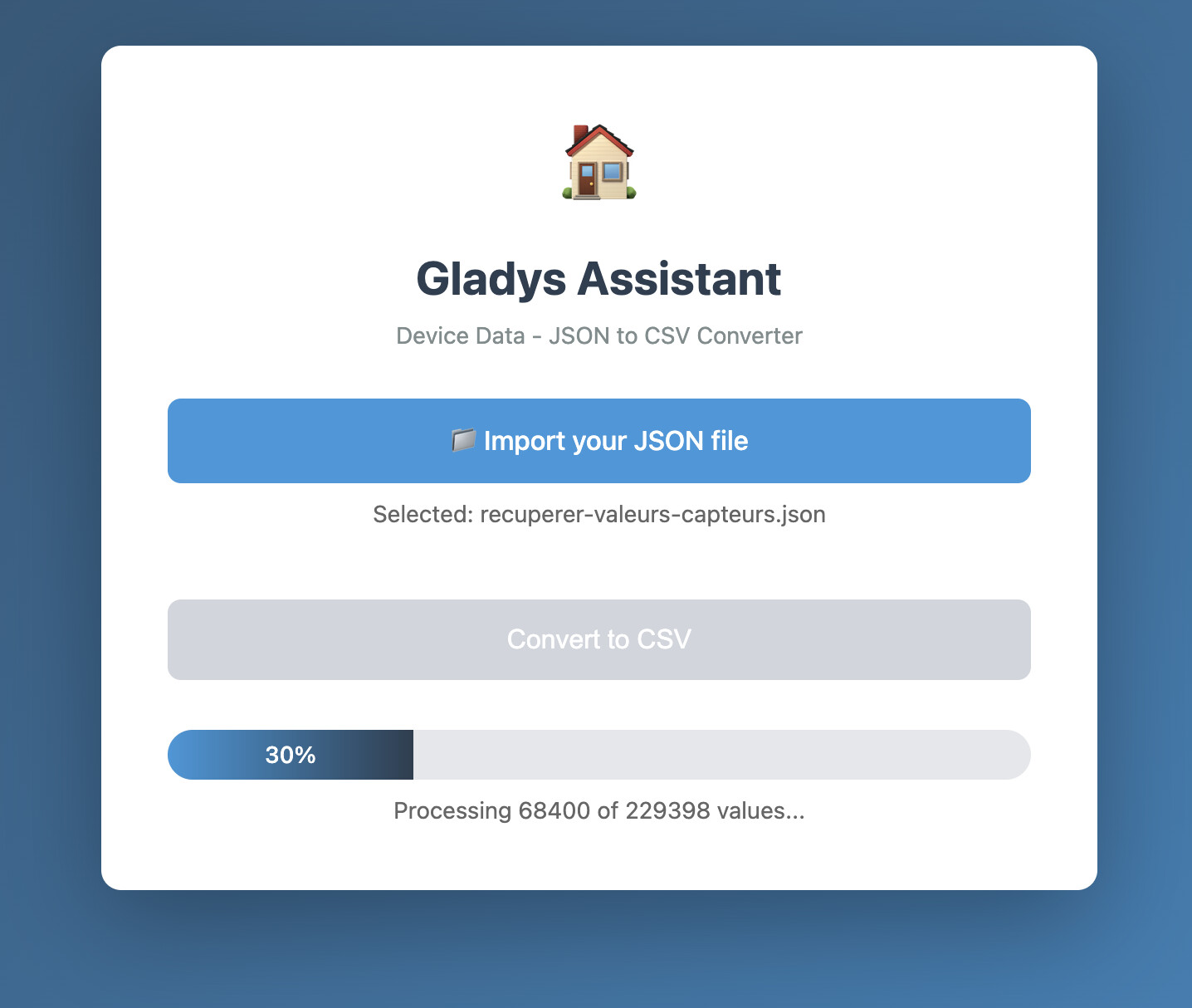
To convert the JSON into a CSV usable in any analysis software (or simply Excel), I asked the AI to create a small site: https://device-json-to-csv.pages.dev/
The site is simply a small client that performs the conversion automatically on the client side (nothing is sent to a server; you can even download the HTML if you prefer to host it locally).
Conclusion
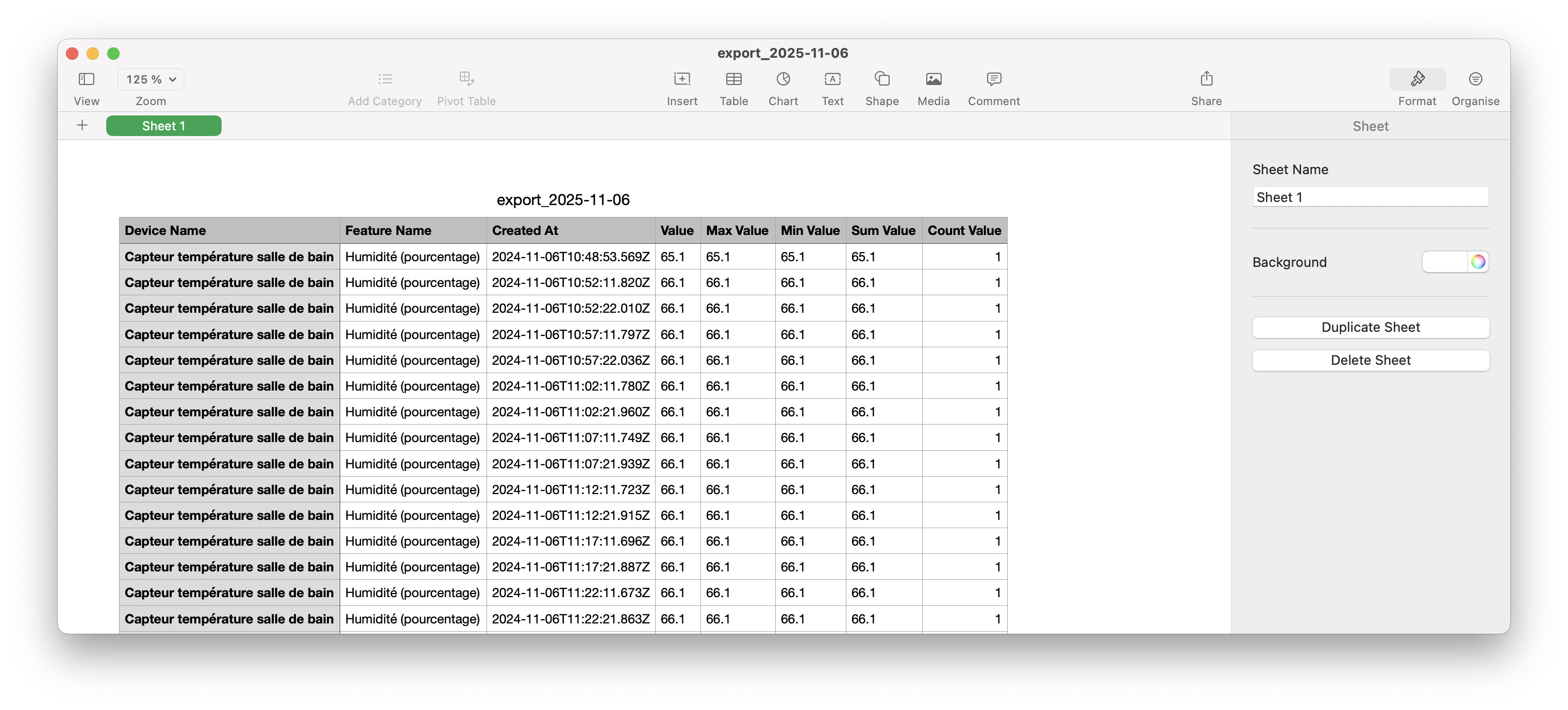
With this site you get a small CSV that you can use however you want!
Example with my humidity sensor:
Don’t forget that the entire Gladys API is documented here: https://apidoc.gladysassistant.com/
You can do everything the Gladys frontend does via the API!
Feel free to ask if you have any questions.