Installing Gladys on a mini PC

The approach (why a mini-PC?):

I started with a Raspberry Pi 3b+, an SD card and a Zigbee2MQTT USB stick. Then I added an SSD.
After some time I started to have problems with my Zigbee2MQTT stick due to a lack of power from the power supply and bugs on the stick.
I tried using a powered hub but the same problem persisted.

(Error: SRSP - SYS - ping after 6000ms)

A few of us experienced this error.

I then moved to a Pi 4. But the same problem occurred.
I sold the Pi 4 and bought a mini PC.

Cost & where to buy:

After some research and a lot of reading I chose a Dell OptiPlex 3040 or 3070.

Specifications:

Processor: Intel Core i3 or i5 series
RAM: 2 to 8 GB
1 x 500 GB HDD
1 Gigabit Ethernet (RJ-45)
1 HDMI
Wi‑Fi / Bluetooth
4 USB 3.0 ports (2 front, 2 rear)
2 USB 2.0 ports (rear)
Headphone and microphone jack

You can find them for around a hundred euros on Le Bon Coin.
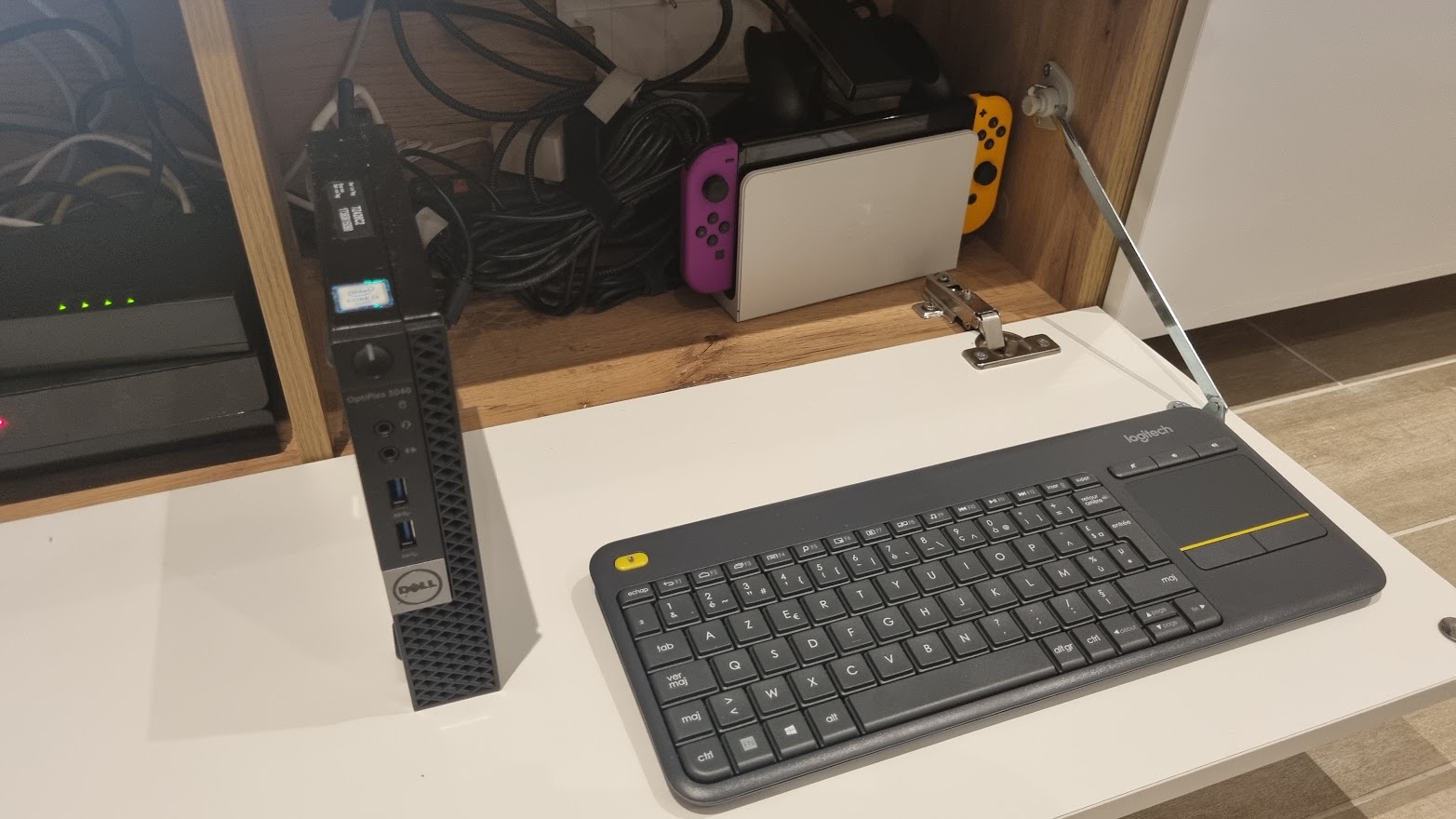
So I sold the Pi 4 for €130 and bought the Dell for €110, and a Logitech K400 Plus keyboard+mouse for €37. Logitech K400 Plus Clavier Sans Fil Touch TV Avec Contrôle Média et Pavé Tactile, Clavier Francais AZERTY - Noir : Amazon.fr: Informatique
I absolutely needed an HDMI port because I wanted to connect it to my TV.

Actual photo:
OS installation / getting started:

The PC came with Windows 10 so I switched it to Ubuntu.
That’s straightforward.
Download your OS .iso onto a USB stick and boot from it when turning on your computer.
The OS will start and you will be able to install it.
I chose to install Ubuntu 22.04 LTS with the desktop so I could access it on my TV.

WARNING: currently Docker images are not built for 32‑bit x86 Linux systems, so you must use a 64‑bit version.

To make a bootable USB stick, I use the small program Rufus Rufus - Créez facilement des clés USB démarrables nothing complicated, everything is explained.
There are others like Etcher, or Unetbootin, …

Network configuration:

I chose to use an Ethernet cable but you can configure Wi‑Fi directly in Ubuntu.

Install Gladys:

After installing Ubuntu, we’ll set up Gladys.

Open the terminal and follow Pierre‑Gilles’s tutorial which is well detailed:

Gladys https://gladysassistant.com/fr/docs/installation/docker/

If you don’t know the IP address, you can download the Net Analyser app on your phone and scan your network.

You now have the IP address to access Gladys.

My personal feedback on this setup

I advise new Gladys users to use a mini PC for the home automation hub.
It’s much more stable than a Pi, more versatile.
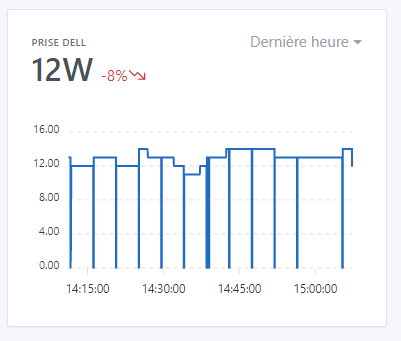
In terms of power consumption, I’m at an average of 12 W.

The mini PC is connected to my TV so I can stream whatever I want — games, movies — on top of that.
Ubuntu is very easy to use; it’s just an OS like any other for those who are apprehensive.

This is more of a user report than a tutorial, but if you have any questions don’t hesitate.

Edit: Here is the link to Pierre‑Gilles’s video that visually explains the installation of Gladys. https://youtu.be/6pBeBcgLvj0

7 Likes

That’s great! I haven’t migrated to my NUC yet, I don’t want to break my z2m integration ^^

I’ll also give a little feedback!

PS : we really have the same kind of setup / and the same keyboard and mouse!

1 Like

Backup migration worked well with the test image from last time, FYI.

You should

1 Like

Yes, that’s what I had in mind, it will be my backup just in case!

Good evening and best wishes to all.
What do you think of this mini PC for installing Gladys?
I’m afraid it might consume too much.
Mini PC Lenovo Tiny M72e - i3 2.80 GHz - 4 GB RAM - without SSD | eBay

To run Gladys, that should do it.
Be aware there is no hard drive

I just tested my NUC (for the moment no dongle plugged into it).
It seems to be equipped with a 7th-generation i3.
Ubuntu Desktop 22.04 installed on it, the Gladys / watchtower / 1 node Presearch dockers, it currently consumes 6 Watts

2 Likes

I have a complete motherboard without a hard drive from an OptiPlex 160 — Atom 330 1.6 GHz, 4 GB of RAM. I’m going to put a 120 GB SSD in it and see if I can install Gladys. It’s a bit better than my Raspberry Pi 3B+. I just have one question: which OS should I use?

You need to install Linux; after that it will depend on whether it’s just for Gladys or if you want a multimedia PC.

For my part I opted for Ubuntu with the desktop because I connected it to my TV so I can stream and access Gladys via the terminal.

1 Like

Ubuntu is the most user-friendly for a novice (in the LTS version)

1 Like

I would even say Linux Mint, which is even easier for people used to Windows (in my opinion)

1 Like

Good evening, I installed Linux Mint on my OptiPlex 160, I installed Docker and it works. When I run the command to install Gladys I get the following response:
Unable to find image ‹ gladysassistant/gladys:v4 › locally
v4: Pulling from gladysassistant/gladys
docker: no matching manifest for linux/386 in the manifest list entries.
See ‹ docker run --help ›.
I understand that Docker doesn’t find the image locally and will fetch it from Docker Hub. But with the part « docker: no matching manifest for linux… » I don’t know what to do. Can someone help me?

I’m not really able to help you, but it looks like a 32-bit / 64-bit image problem.
Did you install a 32-bit Linux Mint?

1 Like

Indeed, I confirm: we currently do not build a Docker image for 32-bit x86 Linux systems.

You need to be on 64-bit Linux :slight_smile:

1 Like

Thanks @pierre-gilles, I’ll add this info to the tutorial.

3 Likes

Yes, I installed

4 Likes

Good evening, after looking for a Linux OS for my Otiplex 160 board, I thought I didn’t need a full OS just to only run Docker to host Gladys, Node-RED and MQTT.

In my opinion that might indeed be the problem… no idea if the dongles will be recognized.
Also, honestly, why bother with OMV (which is intended for NAS) if you want something lightweight you could maybe install Ubuntu Server?

FYI, I’ve included this tutorial in the next newsletter that will go out tonight, in a Facebook post tonight as well, and in a tweet that will go out on Sunday :wink:

1 Like

Good evening @elfedagger, you can connect via SSH and install Gladys as shown in the tutorial and run OMV and Gladys in parallel so your keys should normally be recognized; you just need to first set a port other than 80 to access OMV or switch OMV access to HTTPS in the OMV interface. You can then manage Gladys’ Docker containers via Portainer in OMV but since everything is automatic in Gladys it’s better to leave it as is! :wink: