1) Freebox Home
To control these shutters from the Free API (Node-RED) or other, you first need to pair these shutters with the Freebox Home application. If the shutters are not integrated into the Free application, they will not be accessible from Node-RED and therefore from Gladys.
2) Creating a virtual device in the Gladys MQTT integration
Prerequisite: Install the MQTT broker in Gladys.
Add a virtual device in the MQTT integration with the features Shutter Position and Shutter State.
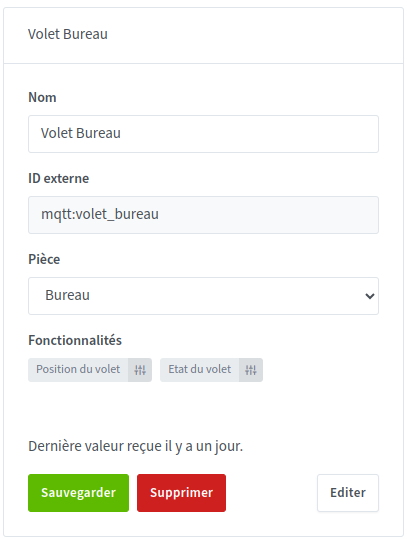
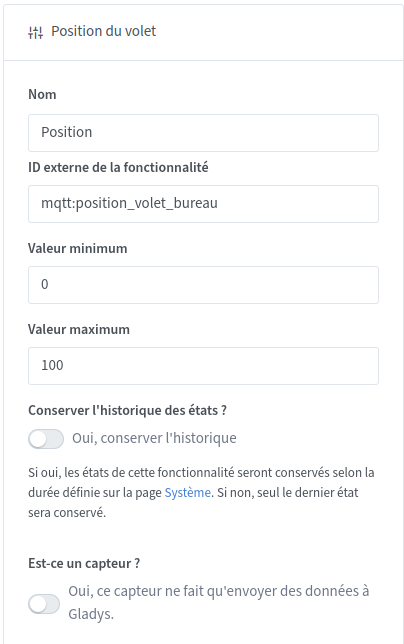
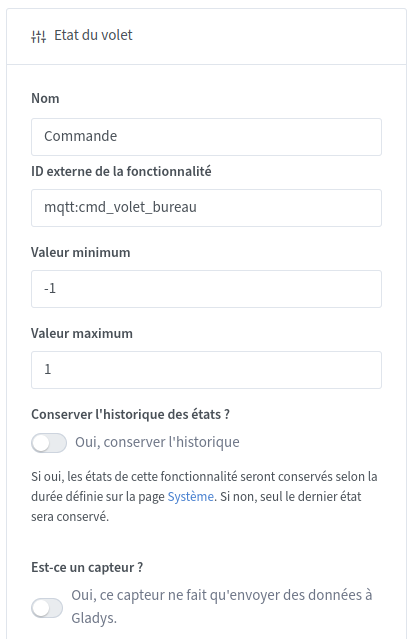
3) Installation in Node-RED
Prerequisite: Have Node-RED installed and the MQTT broker configured. If needed, check out the video by @Pierre-Gilles
To control your shutters from Node-RED, you need to install node-red-contrib-freebox.
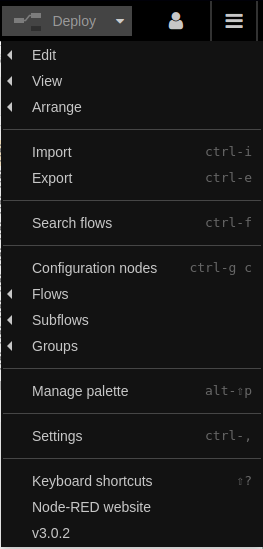
To do this, go to the Node-RED menu and click on Manage palette.
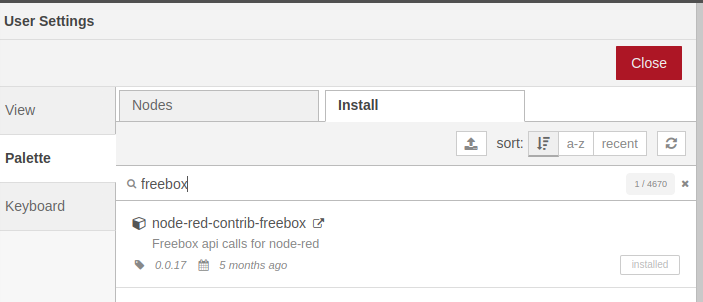
In the Install tab, search for freebox and install node-red-contrib-freebox.
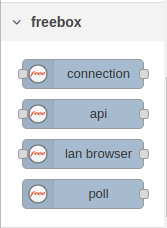
Once installed, the Freebox nodes will then be available in the left bar.
4) Configuring the connection with the Freebox.
Add an api node to your Node-RED flow and double-click to open the properties page.
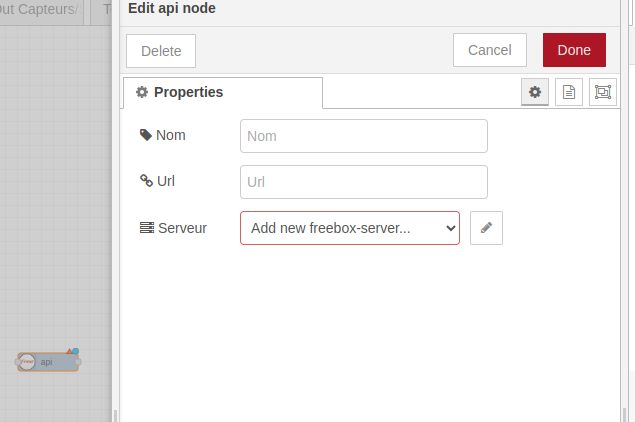
On the server line, click the pencil to create a new Freebox.
Enter the URL of your Freebox and the port
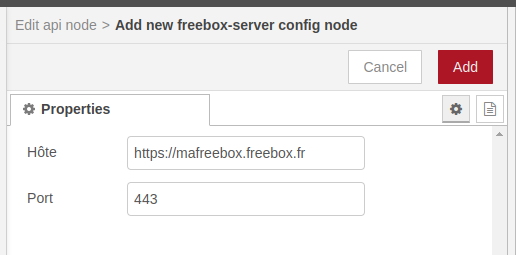
Click Add to add the configuration.
To test the connection, you can add an Inject node as input and a Debug node as output of the API node.
In the Inject node, send the message below. This will retrieve all connected devices from your Freebox as well as their status. The result of this flow will allow you to retrieve the identifiers of our shutters later.
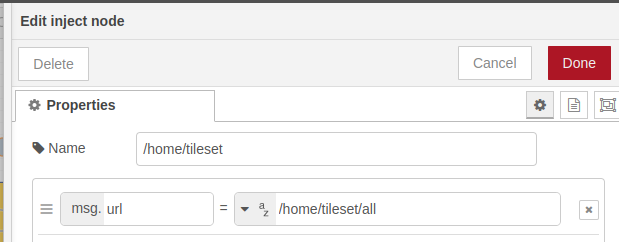
An image of the flow
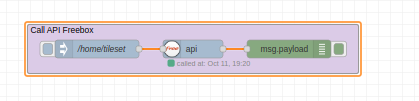
The code of this flow to import directly into Node-Red.
[
    {
        "id": "1d67dee27a16208d",
        "type": "group",
        "z": "d7c3929073ea7b03",
        "name": "Call API Freebox",
        "style": {
            "fill": "#dbcbe7",
            "label": true,
            "color": "#000000"
        },
        "nodes": [
            "4f8f16965ae54f50",
            "72e75292b4cb21f9",
            "7dd73ca182891c1b"
        ],
        "x": 1254,
        "y": 699,
        "w": 552,
        "h": 82
    },
    {
        "id": "4f8f16965ae54f50",
        "type": "api",
        "z": "d7c3929073ea7b03",
        "g": "1d67dee27a16208d",
        "name": "",
        "url": "",
        "server": "35b9faf136b9302a",
        "x": 1530,
        "y": 740,
        "wires": [
            [
                "72e75292b4cb21f9"
            ]
        ]
    },
    {
        "id": "72e75292b4cb21f9",
        "type": "debug",
        "z": "d7c3929073ea7b03",
        "g": "1d67dee27a16208d",
        "name": "",
        "active": true,
        "tosidebar": true,
        "console": false,
        "tostatus": false,
        "complete": "payload",
        "targetType": "msg",
        "statusVal": "",
        "statusType": "auto",
        "x": 1690,
        "y": 740,
        "wires": []
    },
    {
        "id": "7dd73ca182891c1b",
        "type": "inject",
        "z": "d7c3929073ea7b03",
        "g": "1d67dee27a16208d",
        "name": "/home/tileset",
        "props": [
            {
                "p": "url",
                "v": "/home/tileset/all",
                "vt": "str"
            }
        ],
        "repeat": "",
        "crontab": "",
        "once": false,
        "onceDelay": 0.1,
        "topic": "",
        "x": 1370,
        "y": 740,
        "wires": [
            [
                "4f8f16965ae54f50"
            ]
        ]
    },
    {
        "id": "35b9faf136b9302a",
        "type": "freebox-server",
        "host": "https://mafreebox.freebox.fr",
        "port": "443"
    }
]
During the first request, you will need to validate the application directly on the front panel of your Freebox Delta.
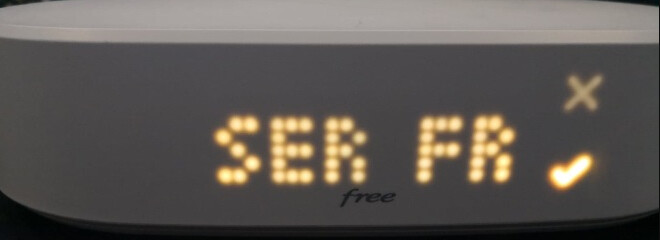
The name Node-RED will appear on the front panel.
Warning: There is a time limit to accept the request. If you do not validate, the Freebox will refuse the connection with Node-RED.
This is not all on the Freebox side, you will also need to authorize the reading of the security pack in the Freebox settings.
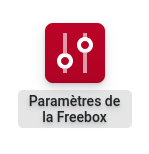
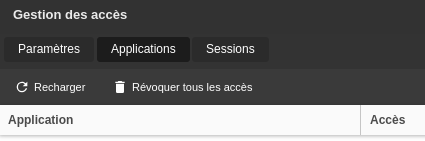
To do this, go to Freebox OS ( https://mafreebox.freebox.fr), log in and go to Freebox Settings and Access Management

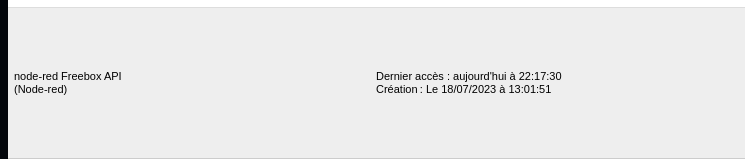
In Access Management, in the Application tab, you should find a line corresponding to Node-RED
Click on the pencil on the right to modify the permissions.
Check the box Home Automation and Alarm Management

5) Creating the flow to read the position of a shutter

You will need to configure these 3 nodes and adapt them according to your installation.
1. Poll free node
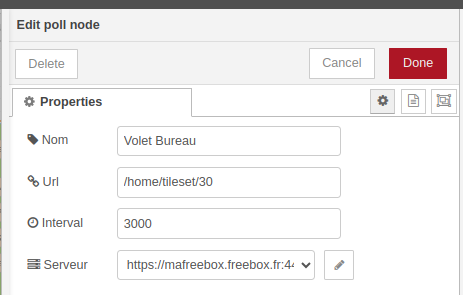
Name: name of your shutter
Url: url to query the Free API on the position of your shutter. Here you will only need to change the value 30 and indicate the node_id value of your shutter. (see below to find the node_id of your shutter)
Interval: period in ms for querying the API. If you set this value to 3000, it means that Node-RED will send a request to the Freebox every 3s.
Server: indicate here your Freebox created previously. You should find this choice by pressing the arrow
How to find the node_id of your shutter?
To find the node_id, simply run the first flow and look for the value in the return.
Expand the table obtained until you find the indication action: « store_slider »
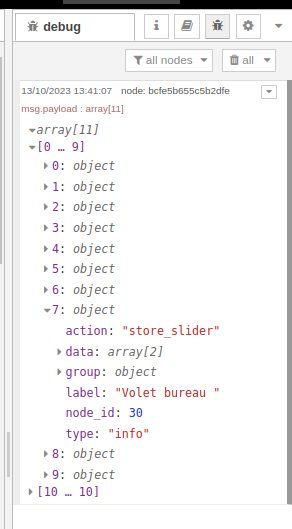
Below you can read the identifier of your shutter. For me, it is therefore the identifier 30.
2. Function node
The ‹ Get only the value › node does not need to be modified. The function reverses the value obtained to display it correctly in Gladys.
3. MQTT OUT node
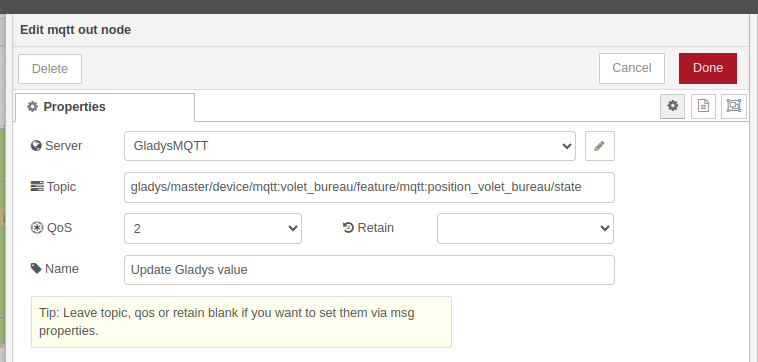
Indicate the value of the MQTT topic of your MQTT device in MQTT Topic to Publish.
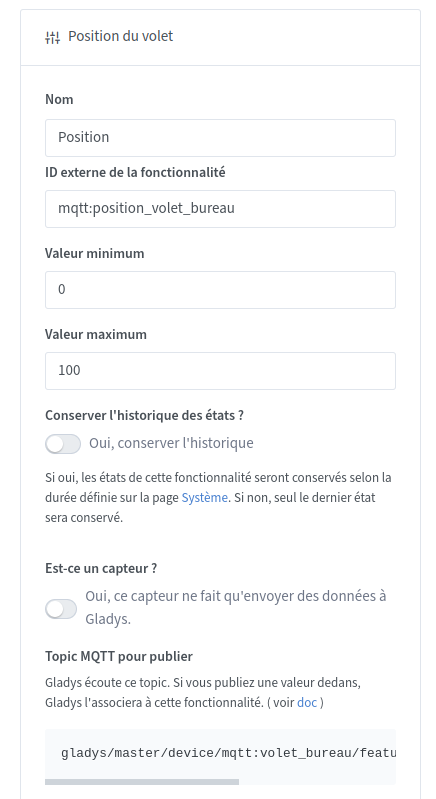
The result in Gladys, you will have a reading of the position of your shutter.
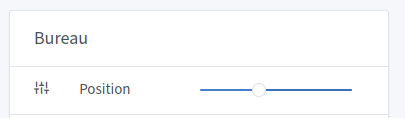
Below is the Node-RED flow
[
    {
        "id": "83c677d56359578d",
        "type": "poll",
        "z": "facf6f6a9a445bc5",
        "g": "7a04e315ea806549",
        "name": "Office Shutter",
        "url": "/home/tileset/30",
        "interval": "3000",
        "server": "35b9faf136b9302a",
        "x": 1150,
        "y": 540,
        "wires": [
            [
                "633f74301050d2f8"
            ]
        ]
    },
    {
        "id": "633f74301050d2f8",
        "type": "function",
        "z": "facf6f6a9a445bc5",
        "g": "7a04e315ea806549",
        "name": "Get only the value",
        "func": "msg.payload = 100 - msg.payload[0].data[0].value;\nreturn msg;",
        "outputs": 1,
        "noerr": 0,
        "initialize": "",
        "finalize": "",
        "libs": [],
        "x": 1750,
        "y": 540,
        "wires": [
            [
                "1ab1d89e132c7653"
            ]
        ]
    },
    {
        "id": "1ab1d89e132c7653",
        "type": "mqtt out",
        "z": "facf6f6a9a445bc5",
        "g": "7a04e315ea806549",
        "name": "Update Gladys value",
        "topic": "gladys/master/device/mqtt:office_shutter/feature/mqtt:office_shutter_position/state",
        "qos": "2",
        "retain": "",
        "respTopic": "",
        "contentType": "",
        "userProps": "",
        "correl": "",
        "expiry": "",
        "broker": "05eac840560ca08c",
        "x": 2080,
        "y": 540,
        "wires": []
    },
    {
        "id": "35b9faf136b9302a",
        "type": "freebox-server",
        "host": "https://mafreebox.freebox.fr",
        "port": "443"
    },
    {
        "id": "05eac840560ca08c",
        "type": "mqtt-broker",
        "name": "GladysMQTT",
        "broker": "192.168.***.***",
        "port": "1883",
        "clientid": "",
        "autoConnect": true,
        "usetls": false,
        "protocolVersion": "4",
        "keepalive": "60",
        "cleansession": true,
        "birthTopic": "",
        "birthQos": "0",
        "birthPayload": "",
        "birthMsg": {},
        "closeTopic": "",
        "closeQos": "0",
        "closePayload": "",
        "closeMsg": {},
        "willTopic": "",
        "willQos": "0",
        "willPayload": "",
        "willMsg": {},
        "userProps": "",
        "sessionExpiry": ""
    }
]
6) Creating the flow to change the position of a shutter

1. MQTT IN node
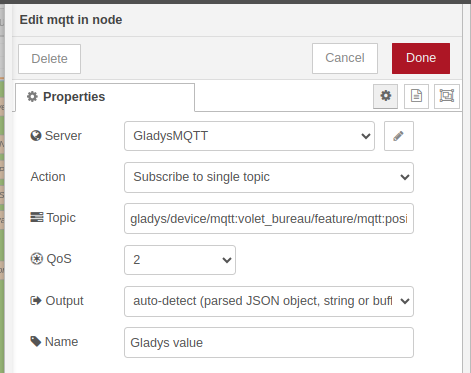
Server: Your Gladys MQTT broker
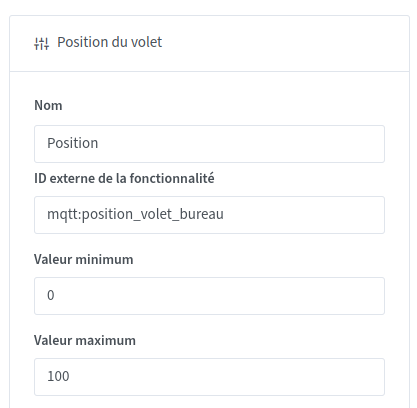
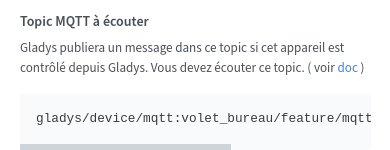
Topic: The topic of your slider device retrieved from the MQTT integration corresponding to the position of your shutter.
2. Function node
The ‹ Convert to the correct value › node will require you to modify the identifiers in the URL to use those of your shutter. There are 2 identifiers to retrieve: node_id, which corresponds to your shutter, and ep_id, which corresponds to the functionality of your shutter.
The message URL is in this format « /home/endpoints/node_id/ep_id »
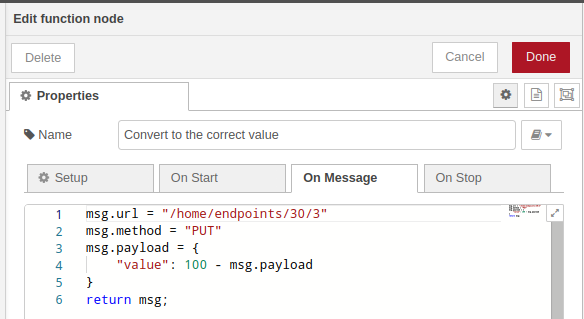
To retrieve these identifiers, use the first flow I gave you.
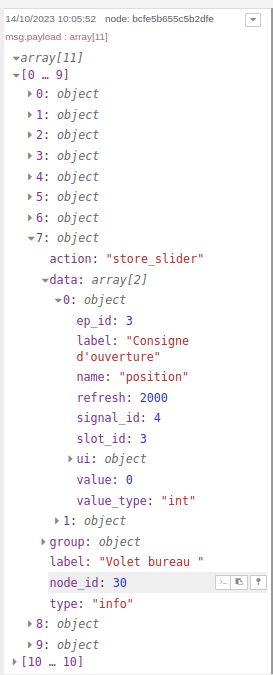
The
node_id is always the same as in the previous flow.The
ep_id is found in the data section and it is the position functionality. So here for my shutter the value 3.
This value must be the same for everyone.
3. Free API node
Specify the URL of your Freebox as in the first flow.
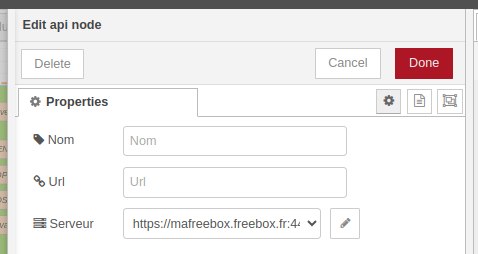
Below is the flow to import into node-RED.
[
    {
        "id": "42f1d4ec5102ed80",
        "type": "mqtt in",
        "z": "facf6f6a9a445bc5",
        "g": "7a04e315ea806549",
        "name": "Gladys value",
        "topic": "gladys/device/mqtt:volet_bureau/feature/mqtt:position_volet_bureau/state",
        "qos": "2",
        "datatype": "auto-detect",
        "broker": "05eac840560ca08c",
        "nl": false,
        "rap": true,
        "rh": 0,
        "inputs": 0,
        "x": 1150,
        "y": 660,
        "wires": [
            [
                "3bb82c10f8678d6a"
            ]
        ]
    },
    {
        "id": "3bb82c10f8678d6a",
        "type": "function",
        "z": "facf6f6a9a445bc5",
        "g": "7a04e315ea806549",
        "name": "Convert to the correct value",
        "func": "msg.url = \"/home/endpoints/30/3\"\nmsg.method = \"PUT\"\nmsg.payload = {\n    \"value\": 100 - msg.payload\n}\nreturn msg;",
        "outputs": 1,
        "noerr": 0,
        "initialize": "",
        "finalize": "",
        "libs": [],
        "x": 1540,
        "y": 660,
        "wires": [
            [
                "77d7357b042a5833"
            ]
        ]
    },
    {
        "id": "77d7357b042a5833",
        "type": "api",
        "z": "facf6f6a9a445bc5",
        "g": "7a04e315ea806549",
        "name": "",
        "url": "",
        "server": "35b9faf136b9302a",
        "x": 1950,
        "y": 660,
        "wires": [
            [
                "4efe8217d70b5fe3"
            ]
        ]
    },
    {
        "id": "4efe8217d70b5fe3",
        "type": "debug",
        "z": "facf6f6a9a445bc5",
        "g": "7a04e315ea806549",
        "name": "debug 26",
        "active": true,
        "tosidebar": true,
        "console": false,
        "tostatus": false,
        "complete": "false",
        "statusVal": "",
        "statusType": "auto",
        "x": 2200,
        "y": 660,
        "wires": []
    },
    {
        "id": "05eac840560ca08c",
        "type": "mqtt-broker",
        "name": "GladysMQTT",
        "broker": "192.168.***.***",
        "port": "1883",
        "clientid": "",
        "autoConnect": true,
        "usetls": false,
        "protocolVersion": "4",
        "keepalive": "60",
        "cleansession": true,
        "birthTopic": "",
        "birthQos": "0",
        "birthPayload": "",
        "birthMsg": {},
        "closeTopic": "",
        "closeQos": "0",
        "closePayload": "",
        "closeMsg": {},
        "willTopic": "",
        "willQos": "0",
        "willPayload": "",
        "willMsg": {},
        "userProps": "",
        "sessionExpiry": ""
    },
    {
        "id": "35b9faf136b9302a",
        "type": "freebox-server",
        "host": "https://mafreebox.freebox.fr",
        "port": "443"
    }
]
7) Creating a flow to change the position of a shutter with a 3-state button (OPEN / STOP / CLOSE)

1. MQTT IN node
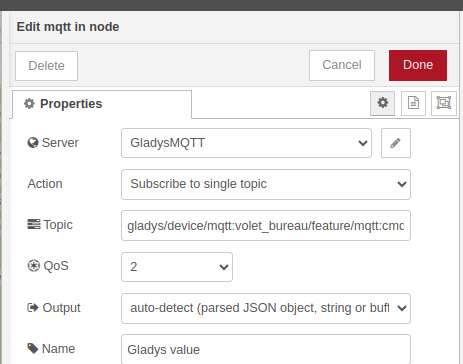
Server: Your Gladys MQTT broker
Topic: The topic of your device Shutter state to retrieve in the MQTT integration.
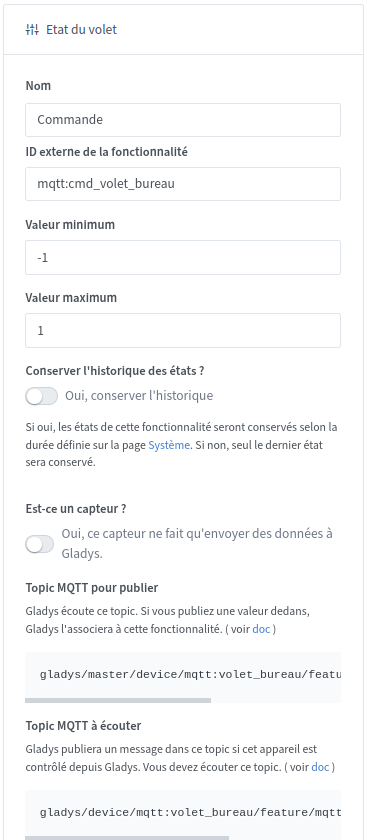
No need to touch the next 2 nodes (json and switch)
The switch will allow you to select the action to execute based on the button press in Gladys.
2. OPEN STOP CLOSE nodes
In these 3 nodes, modify the URL address to indicate the ID of your shutter instead of the value 30.
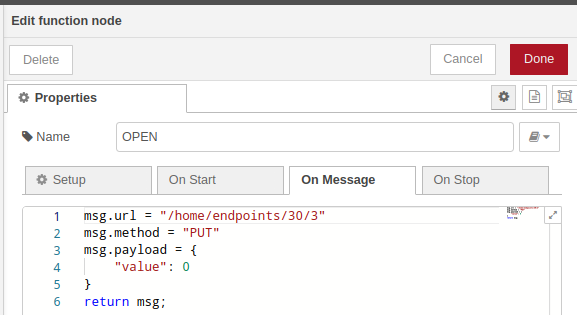
3. Free API node
Indicate the URL of your Freebox as in the first flow.
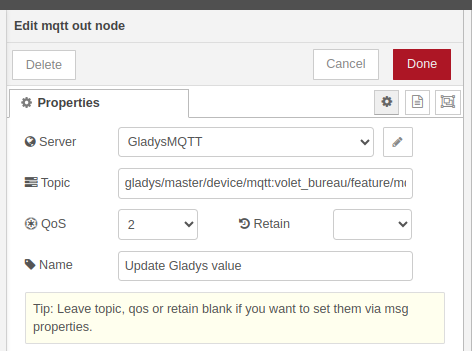
The second part of the flow allows you to select the STOP button in Gladys after 15 seconds.


Here you can see that STOP is grayed out (so selected). I found it better visually to reset the button state to STOP after a certain time. This part can be removed.
You will just need to configure the MQTT OUT node with the topic of your button. Topic to retrieve in Gladys.
Below is the flow to import into node-RED
[
    {
        "id": "471ec274b89ba7a7",
        "type": "mqtt in",
        "z": "facf6f6a9a445bc5",
        "g": "7a04e315ea806549",
        "name": "Gladys value",
        "topic": "gladys/device/mqtt:volet_bureau/feature/mqtt:cmd_volet_bureau/state",
        "qos": "2",
        "datatype": "auto-detect",
        "broker": "05eac840560ca08c",
        "nl": false,
        "rap": true,
        "rh": 0,
        "inputs": 0,
        "x": 1150,
        "y": 320,
        "wires": [
            [
                "79ea0b61e2b9efd3"
            ]
        ]
    },
    {
        "id": "79ea0b61e2b9efd3",
        "type": "json",
        "z": "facf6f6a9a445bc5",
        "g": "7a04e315ea806549",
        "name": "",
        "property": "payload",
        "action": "",
        "pretty": false,
        "x": 1290,
        "y": 320,
        "wires": [
            [
                "661245a7f638d8d1"
            ]
        ]
    },
    {
        "id": "661245a7f638d8d1",
        "type": "switch",
        "z": "facf6f6a9a445bc5",
        "g": "7a04e315ea806549",
        "name": "",
        "property": "payload",
        "propertyType": "msg",
        "rules": [
            {
                "t": "eq",
                "v": "1",
                "vt": "num"
            },
            {
                "t": "eq",
                "v": "0",
                "vt": "num"
            },
            {
                "t": "eq",
                "v": "-1",
                "vt": "num"
            }
        ],
        "checkall": "true",
        "repair": false,
        "outputs": 3,
        "x": 1410,
        "y": 320,
        "wires": [
            [
                "e67eee566c013802",
                "06446de47c9607fd"
            ],
            [
                "cd893f51cc091045"
            ],
            [
                "51d16ab4960719bd",
                "06446de47c9607fd"
            ]
        ],
        "outputLabels": [
            "Open",
            "Stop",
            "Close"
        ]
    },
    {
        "id": "cd893f51cc091045",
        "type": "function",
        "z": "facf6f6a9a445bc5",
        "g": "7a04e315ea806549",
        "name": "STOP",
        "func": "msg.url = \"/home/endpoints/30/1\"\nmsg.method = \"PUT\"\nmsg.payload = {\n    \"value\": null\n}\nreturn msg;",
        "outputs": 1,
        "noerr": 0,
        "initialize": "",
        "finalize": "",
        "libs": [],
        "x": 1710,
        "y": 320,
        "wires": [
            [
                "8654a1df5516031e"
            ]
        ]
    },
    {
        "id": "e67eee566c013802",
        "type": "function",
        "z": "facf6f6a9a445bc5",
        "g": "7a04e315ea806549",
        "name": "OPEN",
        "func": "msg.url = \"/home/endpoints/30/3\"\nmsg.method = \"PUT\"\nmsg.payload = {\n    \"value\": 0\n}\nreturn msg;",
        "outputs": 1,
        "noerr": 0,
        "initialize": "",
        "finalize": "",
        "libs": [],
        "x": 1710,
        "y": 280,
        "wires": [
            [
                "8654a1df5516031e"
            ]
        ]
    },
    {
        "id": "51d16ab4960719bd",
        "type": "function",
        "z": "facf6f6a9a445bc5",
        "g": "7a04e315ea806549",
        "name": "CLOSE",
        "func": "msg.url = \"/home/endpoints/30/3\"\nmsg.method = \"PUT\"\nmsg.payload = {\n    \"value\": 100\n}\nreturn msg;",
        "outputs": 1,
        "noerr": 0,
        "initialize": "",
        "finalize": "",
        "libs": [],
        "x": 1720,
        "y": 360,
        "wires": [
            [
                "8654a1df5516031e"
            ]
        ]
    },
    {
        "id": "06446de47c9607fd",
        "type": "trigger",
        "z": "facf6f6a9a445bc5",
        "g": "7a04e315ea806549",
        "name": "Wait for stable value",
        "op1": "",
        "op2": "",
        "op1type": "nul",
        "op2type": "payl",
        "duration": "15",
        "extend": true,
        "overrideDelay": false,
        "units": "s",
        "reset": "",
        "bytopic": "all",
        "topic": "topic",
        "outputs": 1,
        "x": 1500,
        "y": 400,
        "wires": [
            [
                "0714f8d0c789b85c"
            ]
        ]
    },
    {
        "id": "534e1350127d6e31",
        "type": "mqtt out",
        "z": "facf6f6a9a445bc5",
        "g": "7a04e315ea806549",
        "name": "Update Gladys value",
        "topic": "gladys/master/device/mqtt:volet_bureau/feature/mqtt:cmd_volet_bureau/state",
        "qos": "2",
        "retain": "",
        "respTopic": "",
        "contentType": "",
        "userProps": "",
        "correl": "",
        "expiry": "",
        "broker": "05eac840560ca08c",
        "x": 2080,
        "y": 400,
        "wires": []
    },
    {
        "id": "0714f8d0c789b85c",
        "type": "function",
        "z": "facf6f6a9a445bc5",
        "g": "7a04e315ea806549",
        "name": "Set value to 0",
        "func": "msg.payload = 0;\nreturn msg;",
        "outputs": 1,
        "noerr": 0,
        "initialize": "",
        "finalize": "",
        "libs": [],
        "x": 1740,
        "y": 400,
        "wires": [
            [
                "534e1350127d6e31"
            ]
        ]
    },
    {
        "id": "8654a1df5516031e",
        "type": "api",
        "z": "facf6f6a9a445bc5",
        "g": "7a04e315ea806549",
        "name": "",
        "url": "",
        "server": "35b9faf136b9302a",
        "x": 2050,
        "y": 300,
        "wires": [
            [
                "d08253b67c85d52f"
            ]
        ]
    },
    {
        "id": "d08253b67c85d52f",
        "type": "debug",
        "z": "facf6f6a9a445bc5",
        "g": "7a04e315ea806549",
        "name": "debug 23",
        "active": true,
        "tosidebar": true,
        "console": false,
        "tostatus": false,
        "complete": "false",
        "statusVal": "",
        "statusType": "auto",
        "x": 2220,
        "y": 300,
        "wires": []
    },
    {
        "id": "05eac840560ca08c",
        "type": "mqtt-broker",
        "name": "GladysMQTT",
        "broker": "192.168.***.***",
        "port": "1883",
        "clientid": "",
        "autoConnect": true,
        "usetls": false,
        "protocolVersion": "4",
        "keepalive": "60",
        "cleansession": true,
        "birthTopic": "",
        "birthQos": "0",
        "birthPayload": "",
        "birthMsg": {},
        "closeTopic": "",
        "closeQos": "0",
        "closePayload": "",
        "closeMsg": {},
        "willTopic": "",
        "willQos": "0",
        "willPayload": "",
        "willMsg": {},
        "userProps": "",
        "sessionExpiry": ""
    },
    {
        "id": "35b9faf136b9302a",
        "type": "freebox-server",
        "host": "https://mafreebox.freebox.fr",
        "port": "443"
    }
]
