Improvement of the Room Temperature and Humidity widgets

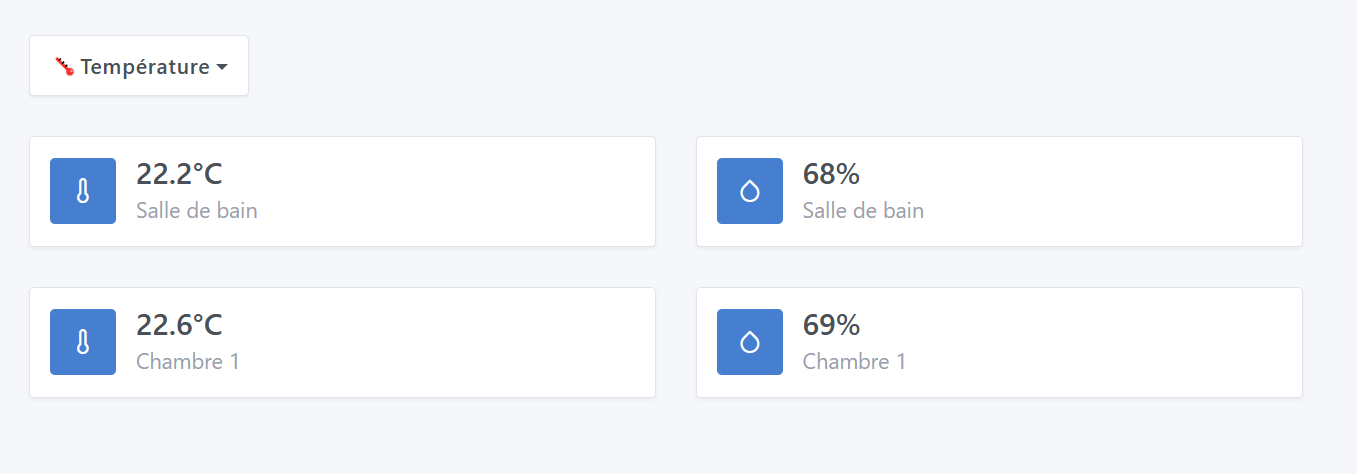
A temperature or humidity value can vary depending on the room:

  • Humidity will be higher in the bathroom than in a bedroom, etc

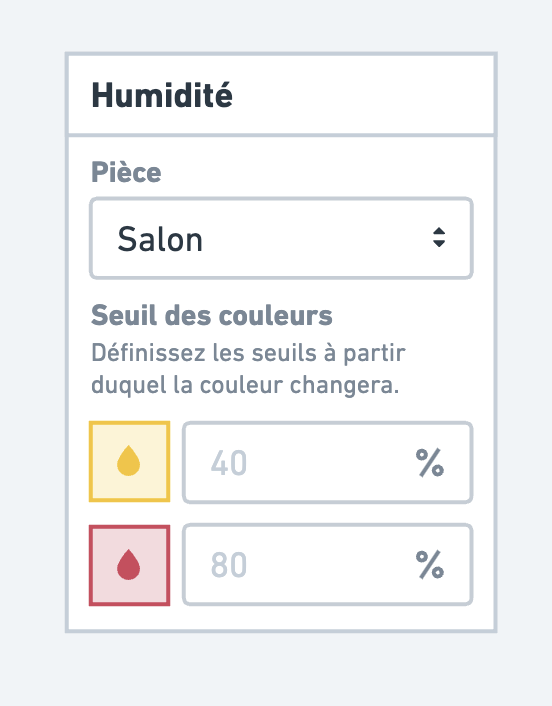
So it would be interesting to allow defining low/normal/high type thresholds on the room Temperature and Humidity widgets to have reliable color information on these dashboards via these widgets.

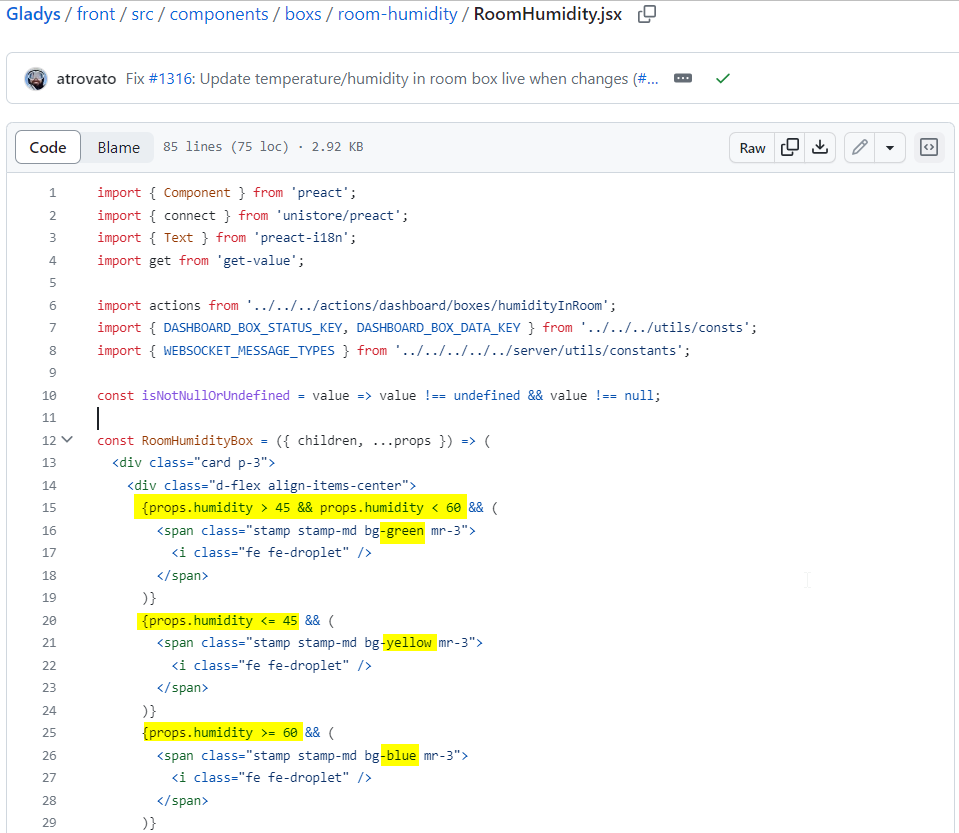
It seems there are only generic thresholds for the Humidity widget (logo color).

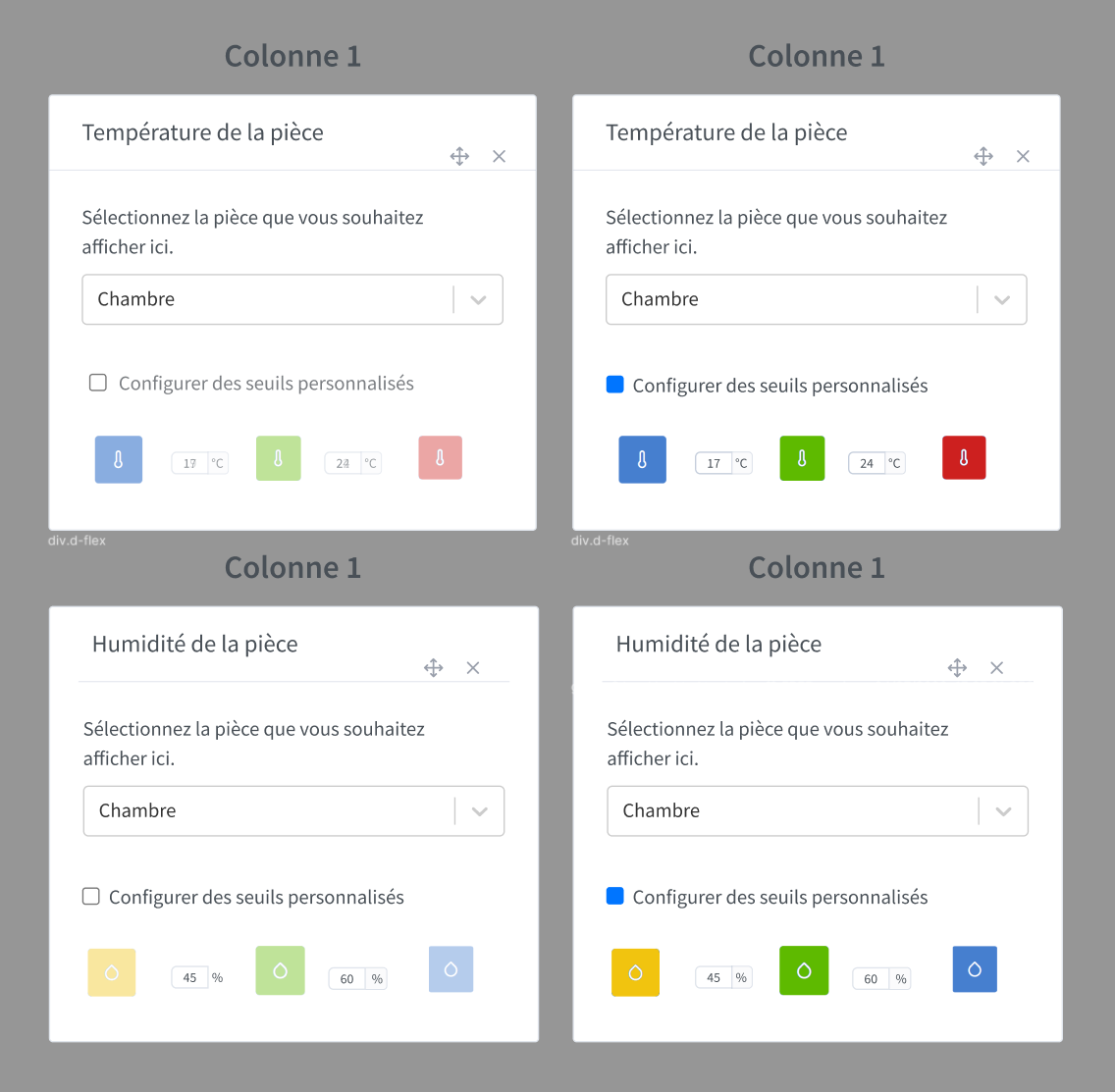
Today, these are the thresholds for the room humidity widget:

  • Humidity less than or equal to 45%: Yellow icon
  • Humidity greater than or equal to 60%: Blue icon
  • Humidity between 45% and 60%: Green icon

It seems the room Temperature widget doesn’t have a notion of thresholds by default today and the icon always remains blue. You might say that I can manage my temperature and humidity alerts via scenes and you are right, but I also think it’s good to have that visually at the widget level on the dashboard. It would also make the colors used for each threshold clearer; I think that today few people know the color/threshold correspondences of this widget and therefore don’t give much importance to these colors.

I can easily imagine the ability to configure these thresholds but as optional (so as not to complicate the widget’s use if people don’t need custom thresholds):

  • Either set generic default thresholds (like what we have today with the room Humidity widget)
  • Or set no thresholds (like what we have today with the room Temperature widget)

Visual example (I’m far from a graphic designer but this can give an idea, on the right thresholds enabled and on the left no threshold):

Maybe also review the color code (add it to the docs and/or in the widget editor) or perhaps allow customizing the color associated with each threshold.

What I can hardly do (If someone wants to take it on):

  • Develop the enhancement to be able to define (or not) these thresholds on the box

What I can do:

  • Start the documentation for the humidity box (it doesn’t exist, only the room Temperature widget is documented)
  • Complete the docs for the temperature and humidity boxes (thresholds/colors and widget behavior in the docs…)

What do you think?

Voted, it’s true that today they’re here just for reference (it looks nice haha).

@qleg :
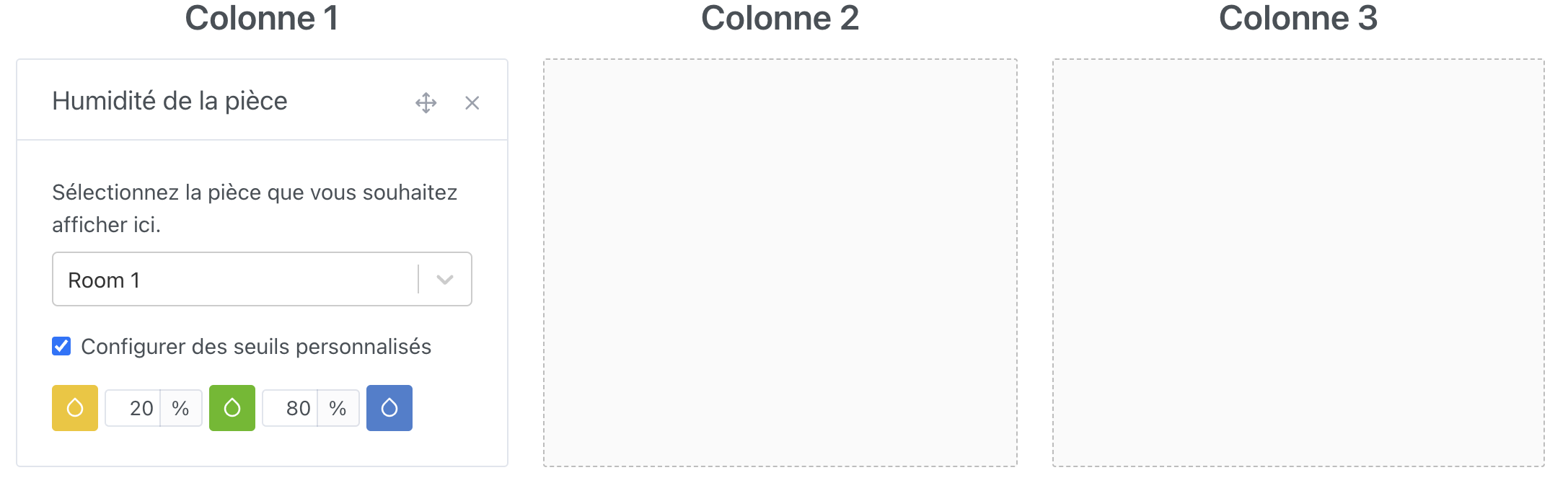
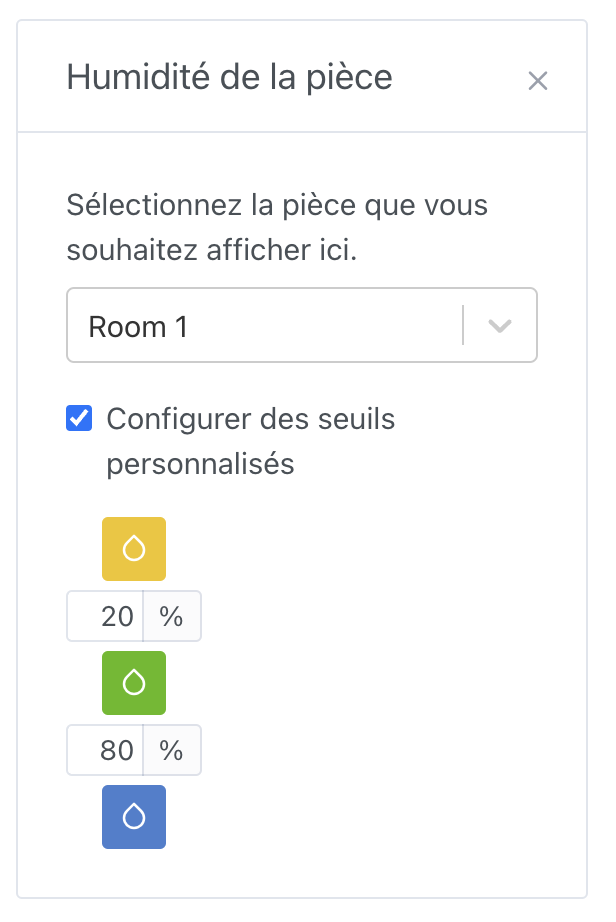
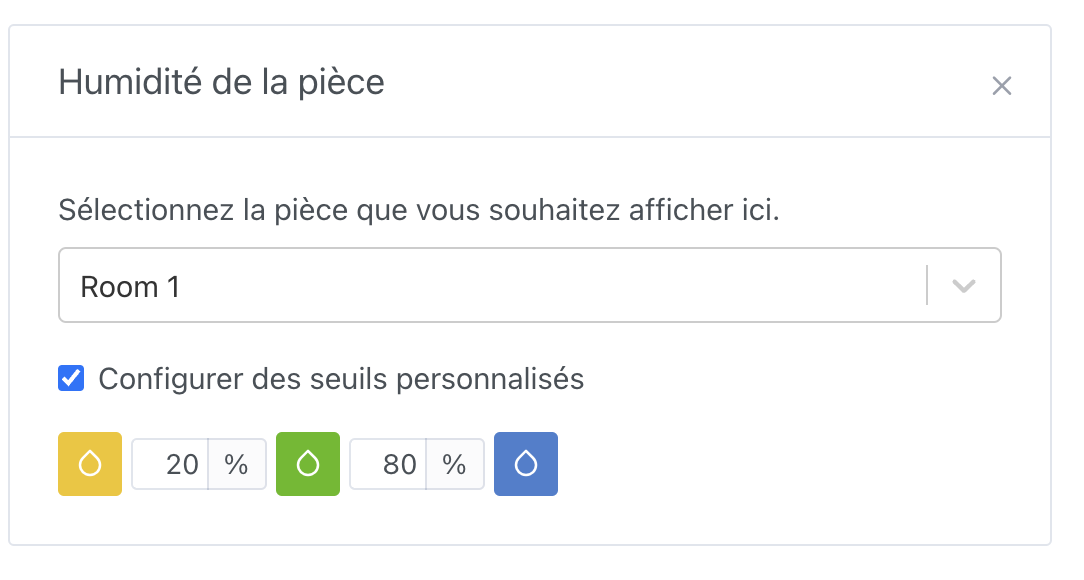
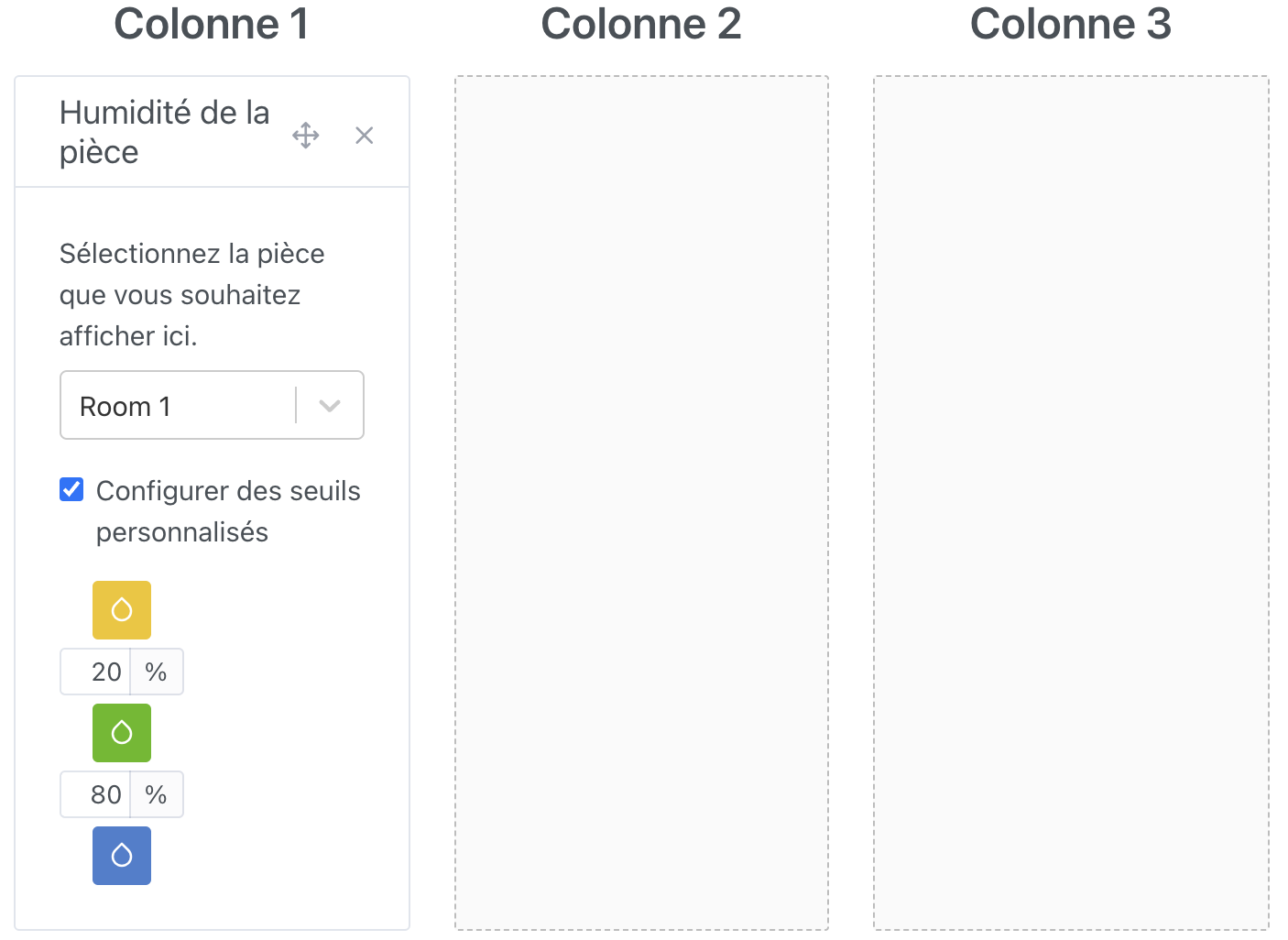
I tried to implement the « design Â» that you made but I have an issue with the width because it doesn’t fit all screen sizes. I did try to compress everything as much as possible. (Don’t pay attention to the text and the colors, I’m in development :slight_smile: )
![Screenshot 2023-09-04 at 15.42.51|690x339](upload://5iiRugxBj

@Lokkye instead of doing that in a column, do it in a row when it doesn’t work in a column :slight_smile: You can do that with a flexbox!

@pierre-gilles : I tried using flexbox and I get the same result


I’m sure I’ve still forgotten a small option to make this work properly but I can’t find it :frowning:

You need to adjust the flexbox direction with the flex-direction property!

When you’re on large screens, you should be in:

 flex-direction: row;

On small screens, you should be in:

 flex-direction: column;

To do this you need to use media queries to switch from one to the other:

@media (max-width: 992px) {
  .classname {
    flex-direction: column;
  }
}

If you want to test a configuration without hassle, there are flexbox generators, very handy for experimenting :slight_smile:

Don’t hesitate if you get stuck!

Edit: Alternatively, you can also use Bootstrap’s native classes (col-md-, col-lg-, etc…) which already do this job

Thanks @pierre-gilles, you showed me the way. The @media wasn’t working because we were in a multi-column layout, but I found the @container which is great for that.
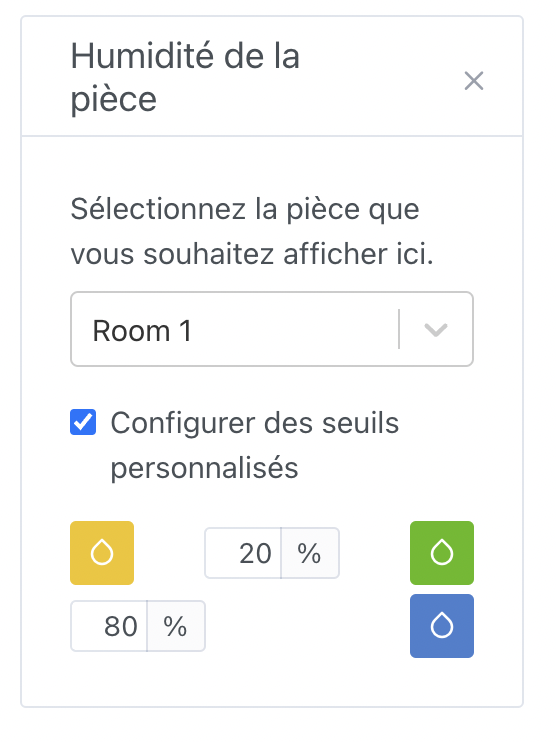
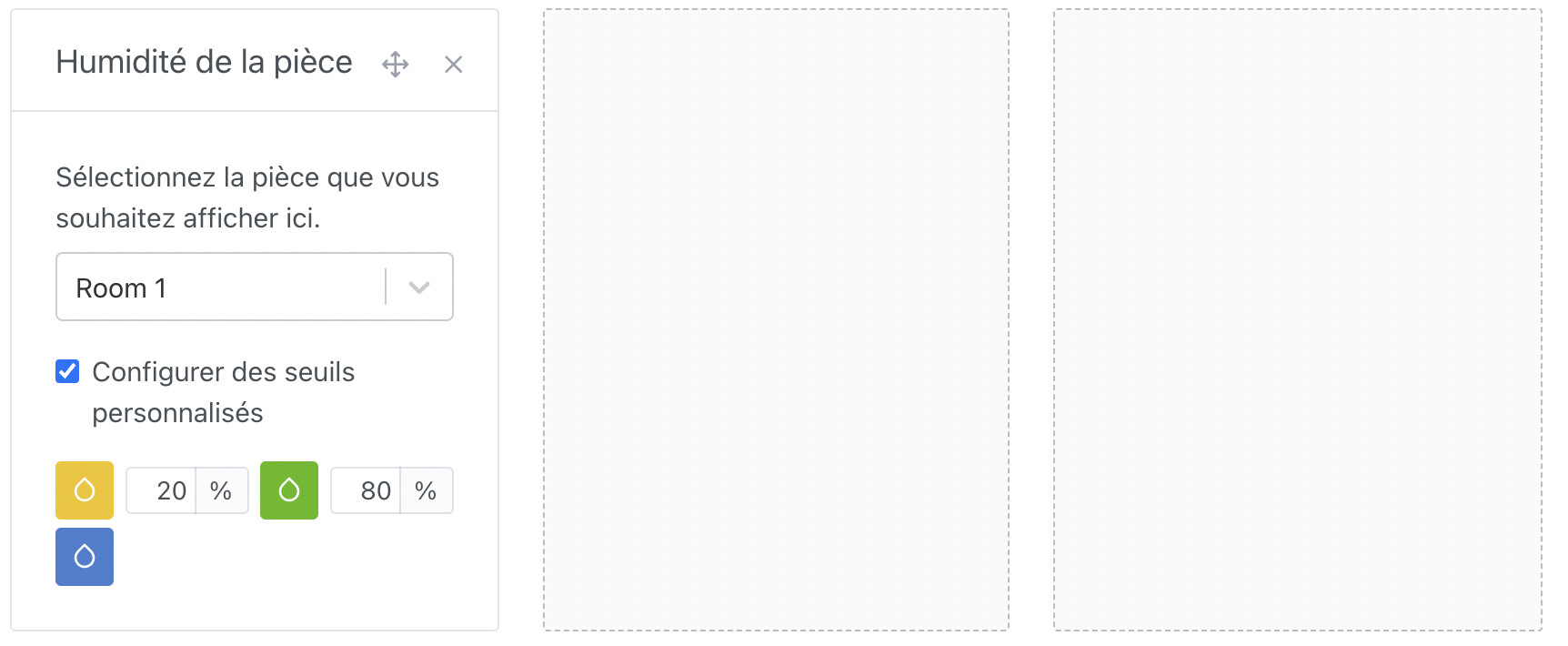
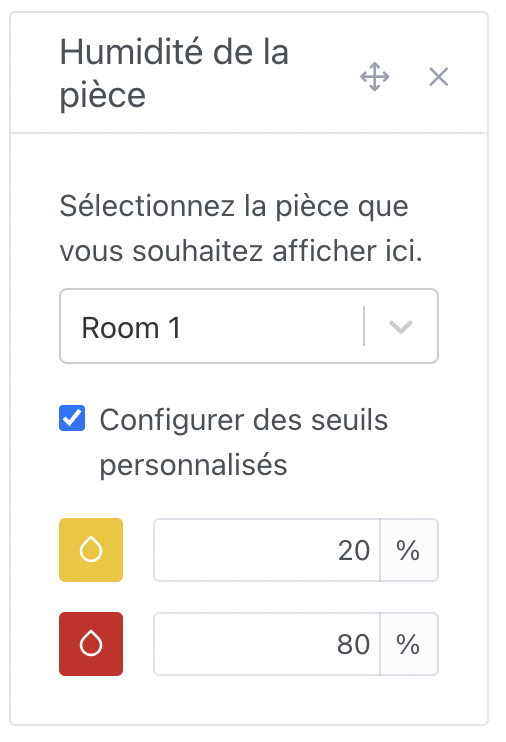
Voila le résultat sur plusieurs taille d’écran:


What do you think?

1 Like

I’m not a huge fan of how it looks, I find it a bit messy!

What do you think of something like this?

3 Likes

I prefer this way of presenting the thing from the point of view of how the elements are organized, but I prefer @Lokkye’s color coding with blue meaning « too wet Â»

1 Like

I agree with @guim31

Ok, the idea is « yellow = too dry Â», « green = all good Â», and blue « too humid Â»?

I see the idea with yellow and green

I see what you mean, but one could also say that if someone wants to measure the humidity of their hammam, they’d want >80% to be green ^^
If anyone has a better idea, I have nothing against it :wink:

What if we let the user choose their color by threshold?
That would address the problem of individual interpretation, but it would mean that everyone would have their own personal color code on this widget, which could be weird.

I’m torn :slight_smile:

I’m not a fan of personalization taken to the extreme like that, and for the hammam thing, in that case red makes just as much sense (when you come out of the hammam, your face is all red!! :grin:)

1 Like

:joy: Very nice pirouette

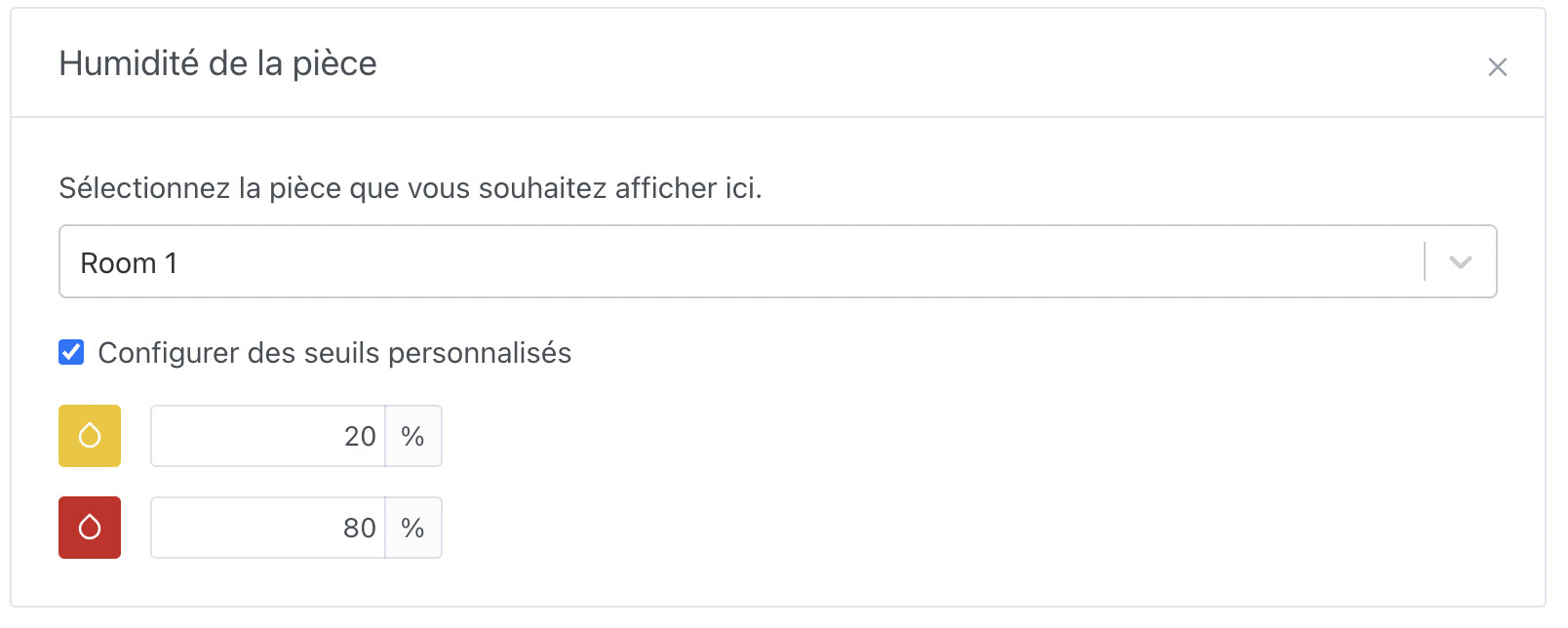
@pierre-gilles :

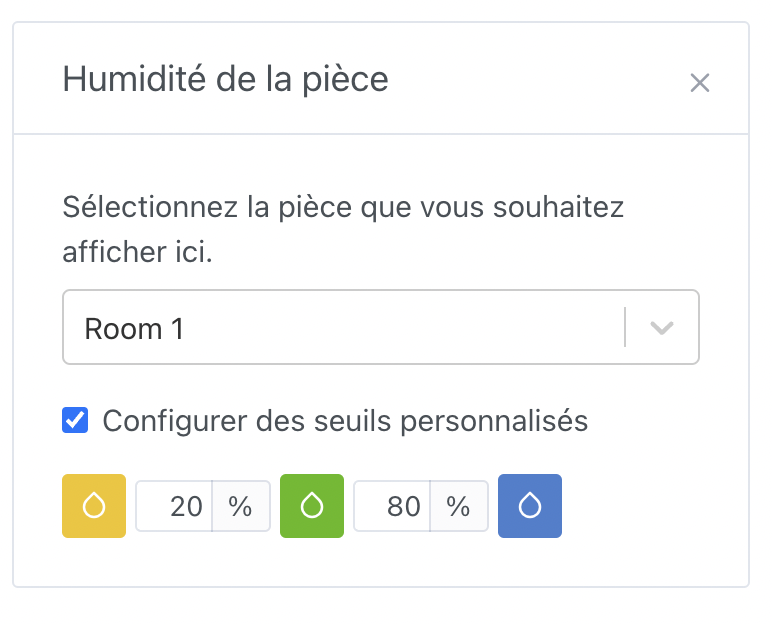
Like this ?


Do we need the checkbox? We can display the default thresholds if they’re not configured, right? Right now that adds one more state to manage; might as well just put the text and the inputs, no?

Otherwise I like it :slight_smile:

As for the red color, I don’t want to impose it either — if I’m alone against everyone, blue works too!
1 Like

I like the design as it is, but I find it’s not clear enough for the user:

  • We don’t know the color of the « normal Â» threshold
  • It’s hard to tell whether the color corresponds to below or above the threshold

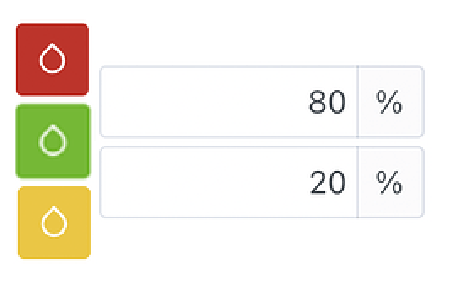
I’d prefer something like this:

I think this design with 3 icons and 2 input fields is a bit confusing :sweat_smile:

Or else keep the 2 icons and add an info « greater than .. Â» and *« less than.. * Â» to the left of the input