Hello everyone,
I’ve created a scene that might interest some of you: detecting a power outage at home and alerting via Telegram.
Scenario Level: Advanced
This scenario uses features not yet available in Gladys. To bypass this, I used Node-Red, installed on the same Raspberry Pi.
 Official Gladys documentation on the subject: Intégrer Node-RED avec Gladys Assistant en MQTT | Gladys Assistant
Prerequisites
I use 100% Zigbee at home. For this scene, I use two components, one of which is not connected:
-
A connected 220V outlet https://www.domadoo.fr/fr/peripheriques/6182-nous-lot-de-2x-prise-intelligente-zigbee-30-mesure-de-consommation-5907772033524.html?domid=17
I take this opportunity to recommend these outlets; they’re not too expensive, really small, and measure consumption! -
An uninterruptible power supply (UPS), connected or not. In my case, I bought it for €50 second-hand on Leboncoin and connected Gladys and my operator’s fiber box to it.
In case of a power outage, I can continue to telework for about 2 hours and Gladys can still send me Telegram notifications!
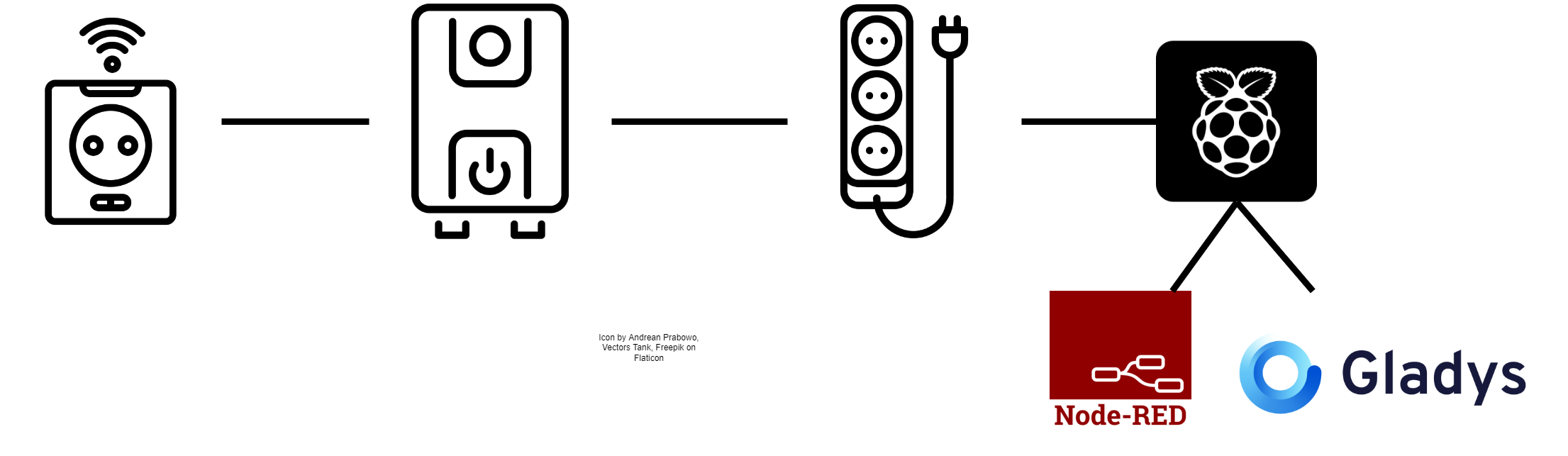
Here is a diagram representing (in order): the connected outlet, the UPS, the power strip (for the fiber box), and the Raspberry Pi with Gladys and Node Red.
Why a UPS?
This allows, in case of a power outage at home, to continue powering Gladys.
How to detect a power outage?
The idea is very simple: there is a power outage if:
- my connected outlet no longer consumes energy (be careful, if it is turned off, this will also be detected)
- my outlet no longer sends data for more than a minute
It is this second point that is not yet managed (to my knowledge) by Gladys at the time of writing.
Node Red Configuration
You need to install Node Red and configure the interconnection with Zigbee2MQTT (already covered by a large number of tutorials).
General Diagram

How to do it?
-
First, store the last value returned by the connected outlet in a file.
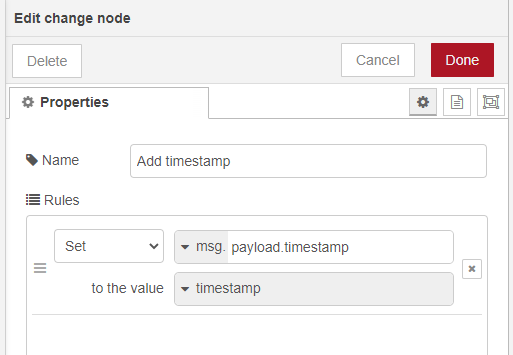
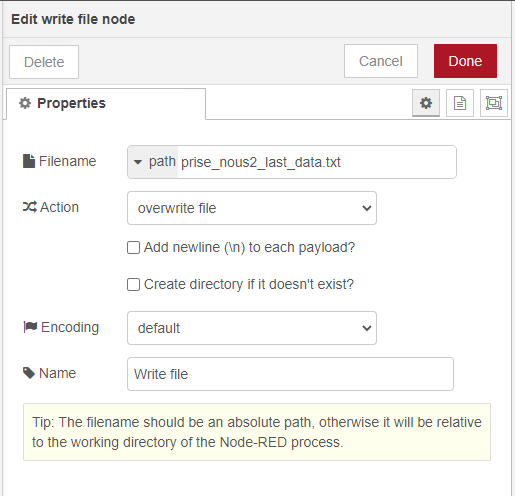
I add the « Get Complete State » block to ensure I have all the outlet data. Then « Add timestamp » allows me to add the data reception date, which I finally store in a file arbitrarily called « prise_nous2_last_data.txt ».
-
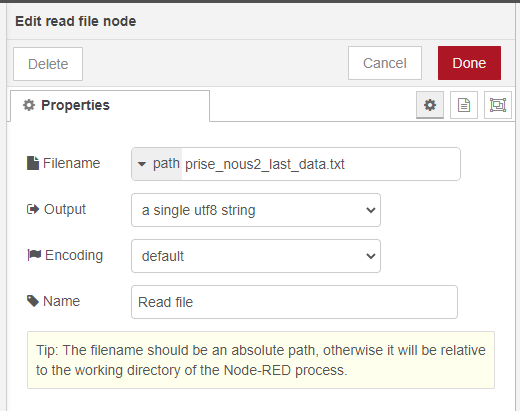
Then I read this file every minute and compare the date it contains with the current time minus one minute.
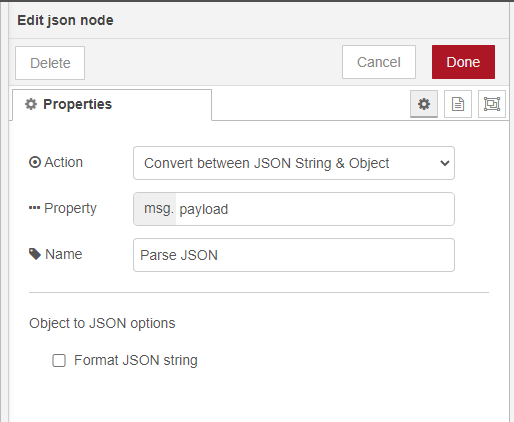
The « Parse JSON » block is necessary to be able to use the data stored in the file correctly.
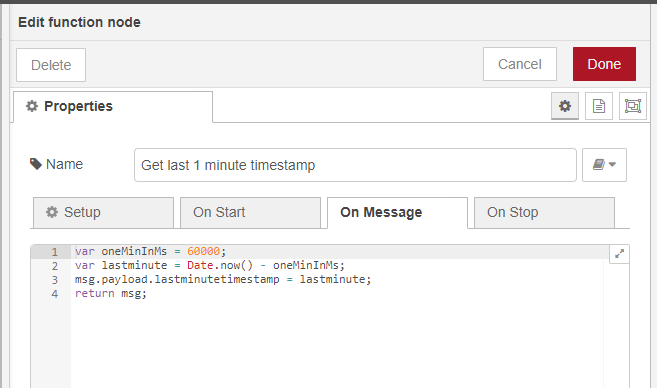
Then with a function block, I calculate the current time minus one minute:
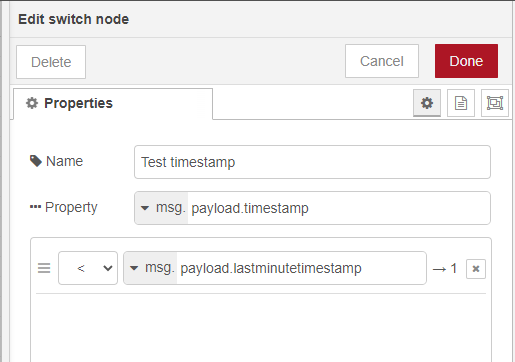
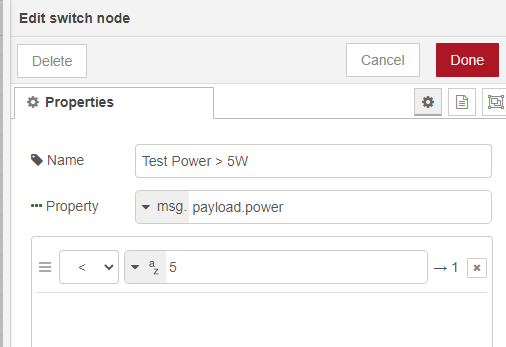
Finally, I perform two tests with the two « switch mode » blocks: if the outlet consumes less than 5W or if the date has exceeded 1 minute:
.png)
>
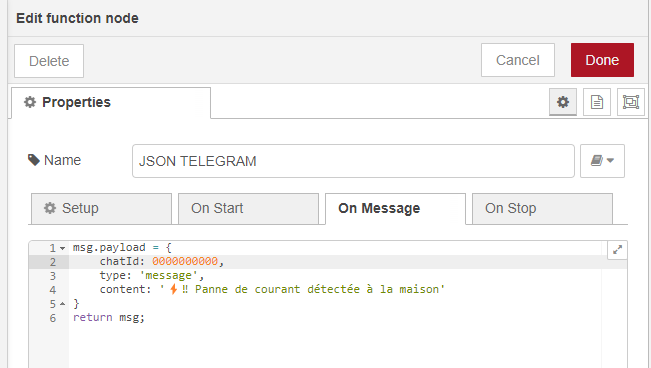
To finish, I create a message to send in Telegra with the last « JSON » block:


Export JSON Node Red
[
    {
        "id": "877e6dde4f64094e",
        "type": "tab",
        "label": "Power Outage",
        "disabled": false,
        "info": "",
        "env": []
    },
    {
        "id": "2d047039d3727cc5",
        "type": "zigbee2mqtt-in",
        "z": "877e6dde4f64094e",
        "name": "OutletUs2 (UPS)",
        "server": "6dda341ee7a029cb",
        "friendly_name": "OutletUs2",
        "device_id": "REDACTED",
        "state": "0",
        "outputAtStartup": true,
        "x": 140,
        "y": 160,
        "wires": [
            [
                "9cc8b65f8ce767af"
            ]
        ]
    },
    {
        "id": "c57fa22873f8262e",
        "type": "file",
        "z": "877e6dde4f64094e",
        "name": "Write file",
        "filename": "outlet_us2_last_data.txt",
        "filenameType": "str",
        "appendNewline": false,
        "createDir": false,
        "overwriteFile": "true",
        "encoding": "none",
        "x": 740,
        "y": 160,
        "wires": [
            []
        ]
    },
    {
        "id": "3c9969810f1b7d9c",
        "type": "file in",
        "z": "877e6dde4f64094e",
        "name": "Read file",
        "filename": "outlet_us2_last_data.txt",
        "filenameType": "str",
        "format": "utf8",
        "chunk": false,
        "sendError": false,
        "encoding": "none",
        "allProps": false,
        "x": 300,
        "y": 320,
        "wires": [
            [
                "393212bfa20c5210"
            ]
        ]
    },
    {
        "id": "4f2d7369b4194a31",
        "type": "inject",
        "z": "877e6dde4f64094e",
        "name": "Every minutes",
        "props": [
            {
                "p": "payload"
            },
            {
                "p": "topic",
                "vt": "str"
            }
        ],
        "repeat": "10",
        "crontab": "",
        "once": false,
        "onceDelay": "60",
        "topic": "",
        "payload": "",
        "payloadType": "date",
        "x": 140,
        "y": 320,
        "wires": [
            [
                "3c9969810f1b7d9c"
            ]
        ]
    },
    {
        "id": "21bca9ada5443cb1",
        "type": "change",
        "z": "877e6dde4f64094e",
        "name": "Add timestamp",
        "rules": [
            {
                "t": "set",
                "p": "payload.timestamp",
                "pt": "msg",
                "to": "",
                "tot": "date"
            }
        ],
        "action": "",
        "property": "",
        "from": "",
        "to": "",
        "reg": false,
        "x": 580,
        "y": 160,
        "wires": [
            [
                "c57fa22873f8262e"
            ]
        ]
    },
    {
        "id": "d32f71ec6761bdda",
        "type": "switch",
        "z": "877e6dde4f64094e",
        "name": "Test timestamp",
        "property": "payload.timestamp",
        "propertyType": "msg",
        "rules": [
            {
                "t": "lt",
                "v": "payload.lastminutetimestamp",
                "vt": "msg"
            }
        ],
        "checkall": "true",
        "repair": false,
        "outputs": 1,
        "x": 880,
        "y": 320,
        "wires": [
            [
                "cabbc5db0e4652b6",
                "e803e70cdfe1f77a"
            ]
        ]
    },
    {
        "id": "09bee4816c7b6a4b",
        "type": "function",
        "z": "877e6dde4f64094e",
        "name": "Get last 1 minute timestamp",
        "func": "var oneMinInMs = 60000;\nvar lastminute = Date.now() - oneMinInMs;\nmsg.payload.lastminutetimestamp = lastminute;\nreturn msg;",
        "outputs": 1,
        "noerr": 0,
        "initialize": "",
        "finalize": "",
        "libs": [],
        "x": 660,
        "y": 320,
        "wires": [
            [
                "d32f71ec6761bdda"
            ]
        ]
    },
    {
        "id": "cabbc5db0e4652b6",
        "type": "debug",
        "z": "877e6dde4f64094e",
        "name": "POWER OUTAGE",
        "active": true,
        "tosidebar": true,
        "console": false,
        "tostatus": false,
        "complete": "true",
        "targetType": "full",
        "statusVal": "",
        "statusType": "auto",
        "x": 910,
        "y": 280,
        "wires": []
    },
    {
        "id": "393212bfa20c5210",
        "type": "json",
        "z": "877e6dde4f64094e",
        "name": "Parse JSON",
        "property": "payload",
        "action": "",
        "pretty": false,
        "x": 450,
        "y": 320,
        "wires": [
            [
                "09bee4816c7b6a4b",
                "af16ab7a64e96d55"
            ]
        ]
    },
    {
        "id": "1868c1c355f975cf",
        "type": "telegram sender",
        "z": "877e6dde4f64094e",
        "name": "Telegram",
        "bot": "REDACTED",
        "haserroroutput": false,
        "outputs": 1,
        "x": 1500,
        "y": 320,
        "wires": [
            []
        ]
    },
    {
        "id": "dfaa974da87838fe",
        "type": "function",
        "z": "877e6dde4f64094e",
        "name": "JSON TELEGRAM",
        "func": "msg.payload = {\n    chatId: REDACTED,\n    type: 'message',\n    content: '⚡‼️ Power outage detected at home'\n}\nreturn msg;",
        "outputs": 1,
        "noerr": 0,
        "initialize": "",
        "finalize": "",
        "libs": [],
        "x": 1330,
        "y": 320,
        "wires": [
            [
                "1868c1c355f975cf"
            ]
        ]
    },
    {
        "id": "e803e70cdfe1f77a",
        "type": "switch",
        "z": "877e6dde4f64094e",
        "name": "Test Power > 5W",
        "property": "payload.power",
        "propertyType": "msg",
        "rules": [
            {
                "t": "lt",
                "v": "5",
                "vt": "str"
            }
        ],
        "checkall": "true",
        "repair": false,
        "outputs": 1,
        "x": 1110,
        "y": 320,
        "wires": [
            [
                "dfaa974da87838fe"
            ]
        ]
    },
    {
        "id": "af16ab7a64e96d55",
        "type": "debug",
        "z": "877e6dde4f64094e",
        "name": "READ FILE",
        "active": true,
        "tosidebar": true,
        "console": false,
        "tostatus": false,
        "complete": "true",
        "targetType": "full",
        "statusVal": "",
        "statusType": "auto",
        "x": 450,
        "y": 360,
        "wires": []
    },
    {
        "id": "9cc8b65f8ce767af",
        "type": "zigbee2mqtt-get",
        "z": "877e6dde4f64094e",
        "name": "Get Complete State",
        "server": "6dda341ee7a029cb",
        "friendly_name": "OutletUs2",
        "device_id": "REDACTED",
        "state": "0",
        "x": 370,
        "y": 160,
        "wires": [
            [
                "21bca9ada5443cb1"
            ]
        ]
    },
    {
        "id": "6dda341ee7a029cb",
        "type": "zigbee2mqtt-server",
        "name": "Zigbee2MQTT",
        "host": "127.0.0.1",
        "mqtt_port": "1884",
        "mqtt_username": "z2m",
        "mqtt_password": "REDACTED",
        "tls": "",
        "usetls": false,
        "base_topic": "zigbee2mqtt"
    },
    {
        "id": "1008fcc5ae346779",
        "type": "telegram bot",
        "botname": "Node Red Gladys Ermont",
        "usernames": "",
        "chatids": "REDACTED",
        "baseapiurl": "",
        "updatemode": "polling",
        "pollinterval": "300",
        "usesocks": false,
        "sockshost": "",
        "socksport": "6667",
        "socksusername": "anonymous",
        "sockspassword": "",
        "bothost": "",
        "botpath": "",
        "localbotport": "8443",
        "publicbotport": "8443",
        "privatekey": "",
        "certificate": "",
        "useselfsignedcertificate": false,
        "sslterminated": false,
        "verboselogging": false
    }
]
Conclusion
If my inverter no longer consumes electricity, it means there is no more power at home. In this case, the smart plug to which the inverter is connected will no longer consume electricity or send data.
Node Red makes this quite easy to achieve in reality.
Feel free to give me your feedback if I need to clarify certain parts further!


