Hello everyone!
Today I’m going to show you what I did to control the Ambilight of my TV using Gladys.
Disclaimer
This tutorial will only present the Ambilight control part and not the installation of the Ambilight solution (which I could possibly show later if you’re interested)
But what is Ambilight?
I believe the name is trademarked by Philips, but since the technology was released it has somewhat become a common name to designate synchronizing lights with the image displayed by your TV (often via LEDs placed behind the television)
Prerequisites
- A preconfigured HyperionNG installation Github Hyperion
- A Zigbee button in my case: Sonoff button
- Or Node-RED installed and a Samsung TV running the Samsung OS called TIZEN
Let’s go
I’ll present two solutions.
The first is to enable or disable the Ambilight via a Zigbee button
The second is to enable or disable the Ambilight based on the TV state (on or off)
First Solution
It’s very simple. When you arrive on the homepage of our Hyperion instance, you land on the dashboard
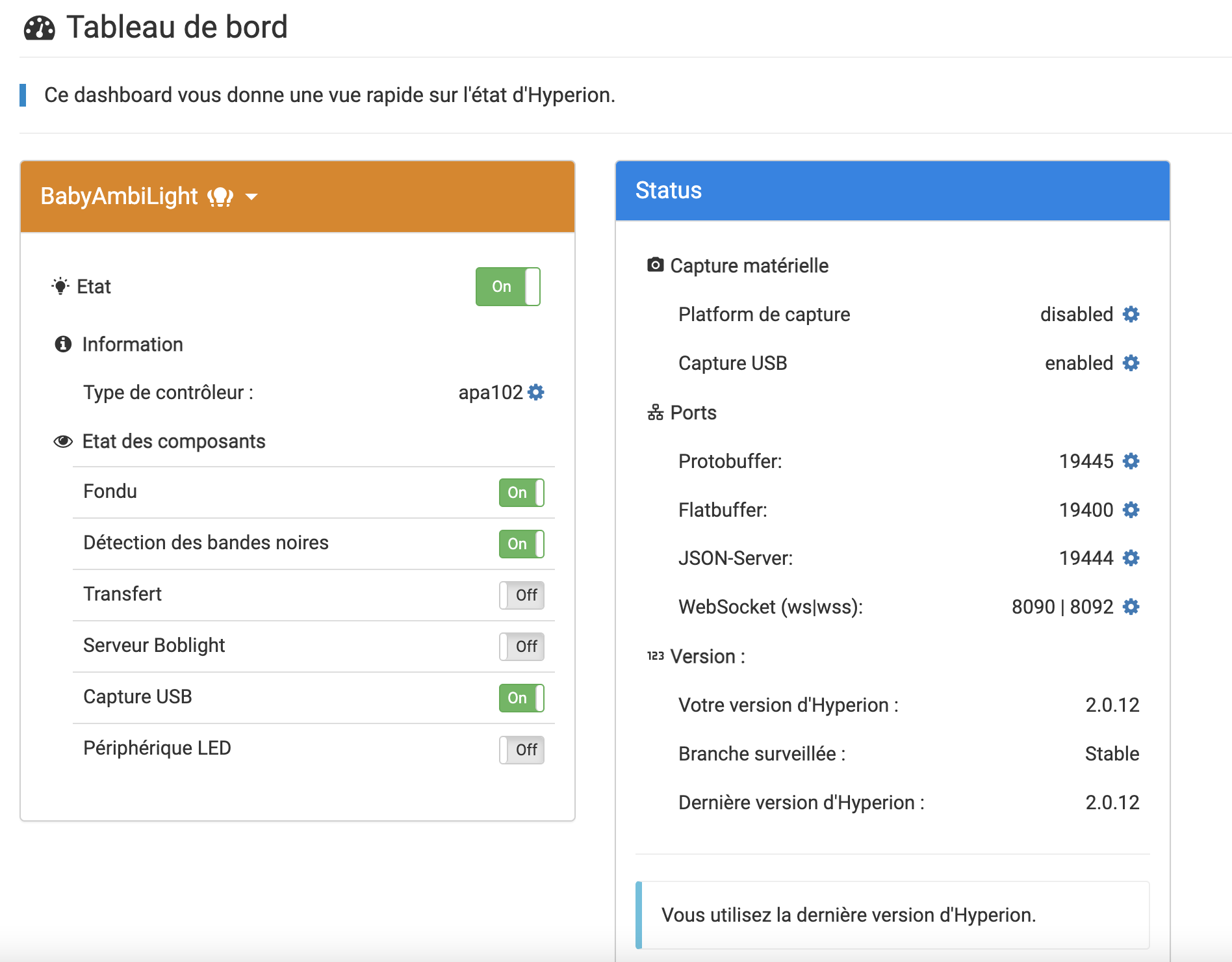
As you can see, there are quite a few things enabled, but what really consumes power are the LEDs and they are disabled.
To capture the image from my TV, I use a wide-angle webcam placed just in front of the screen. This allows me to be multi-source (Freebox, console and even YouTube or Plex as a native app on the TV).
The goal is therefore to turn the LEDs on or off. To do this, Hyperion offers an API accessible directly via HTTP requests.
We must first retrieve an authentication token to be able to communicate with Hyperion over HTTP
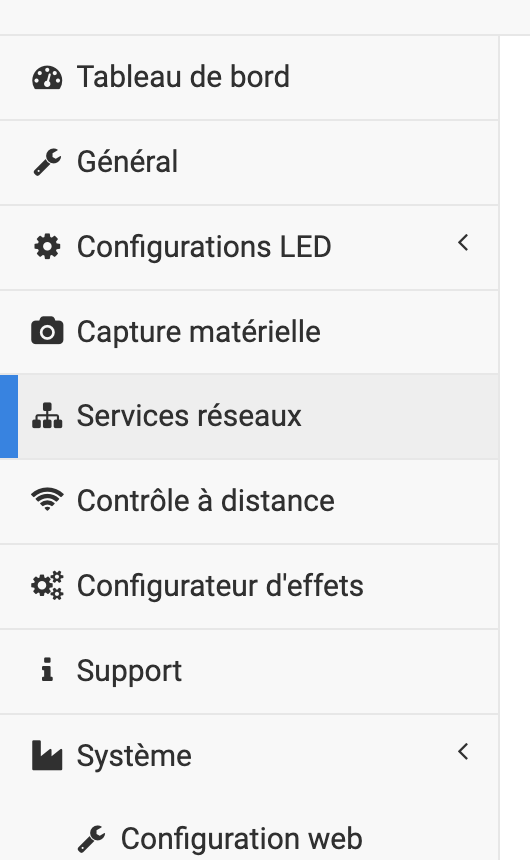
Click on Network Services and in the Token Management section add a description and click Create Token (keep it safe)
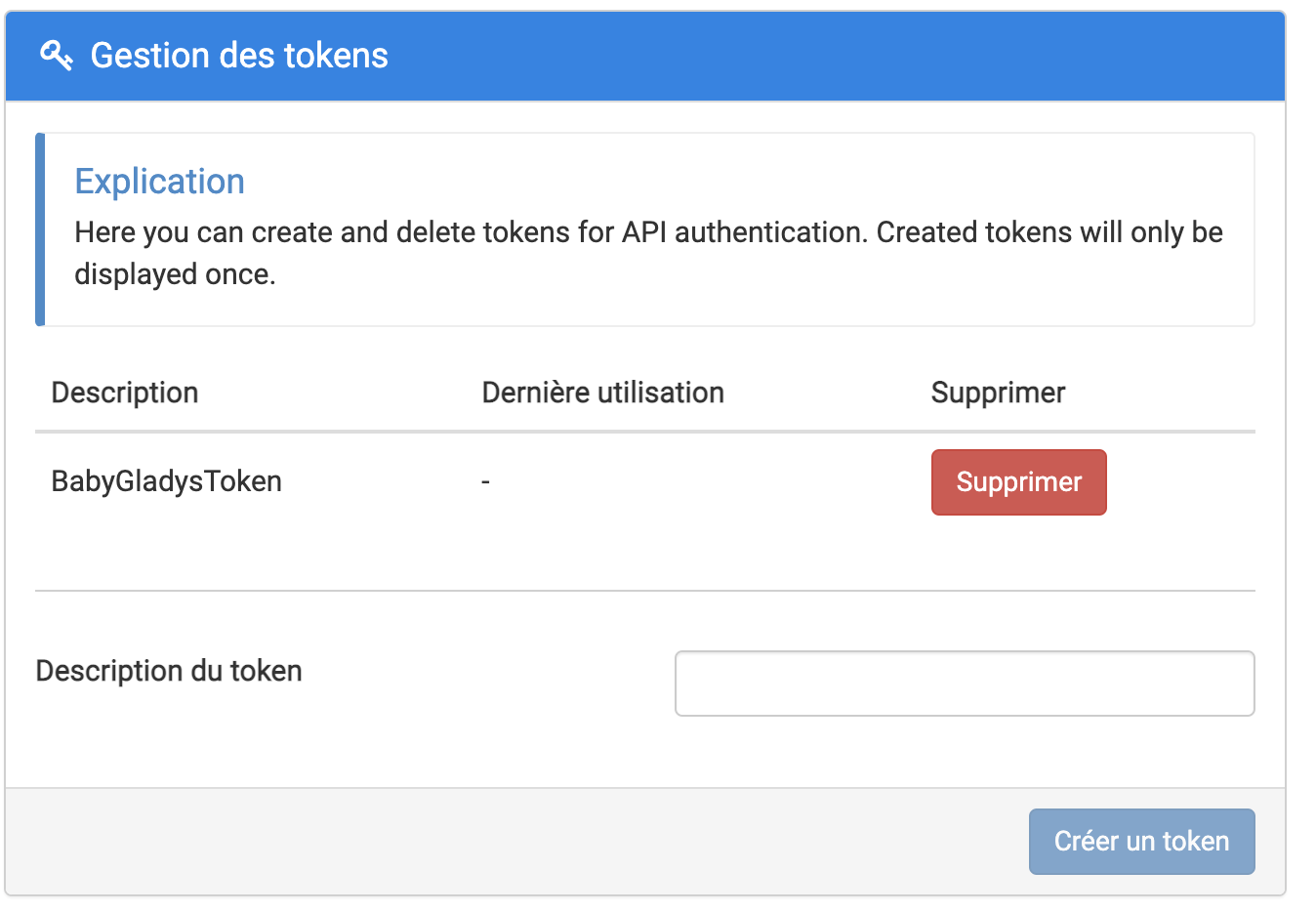
Back in Gladys, once our Zigbee button is paired, we’ll create a scene to turn the LEDs on with a single button press and another scene to turn them off on a double press
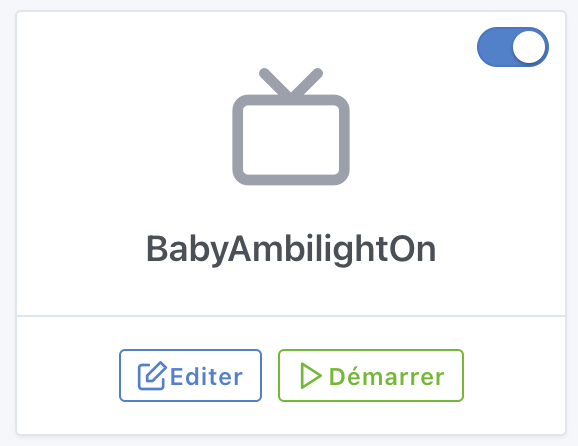
In the scene, add a trigger: On device state change
Choose the desired button and compare if its state equals 1 (corresponding to a click)
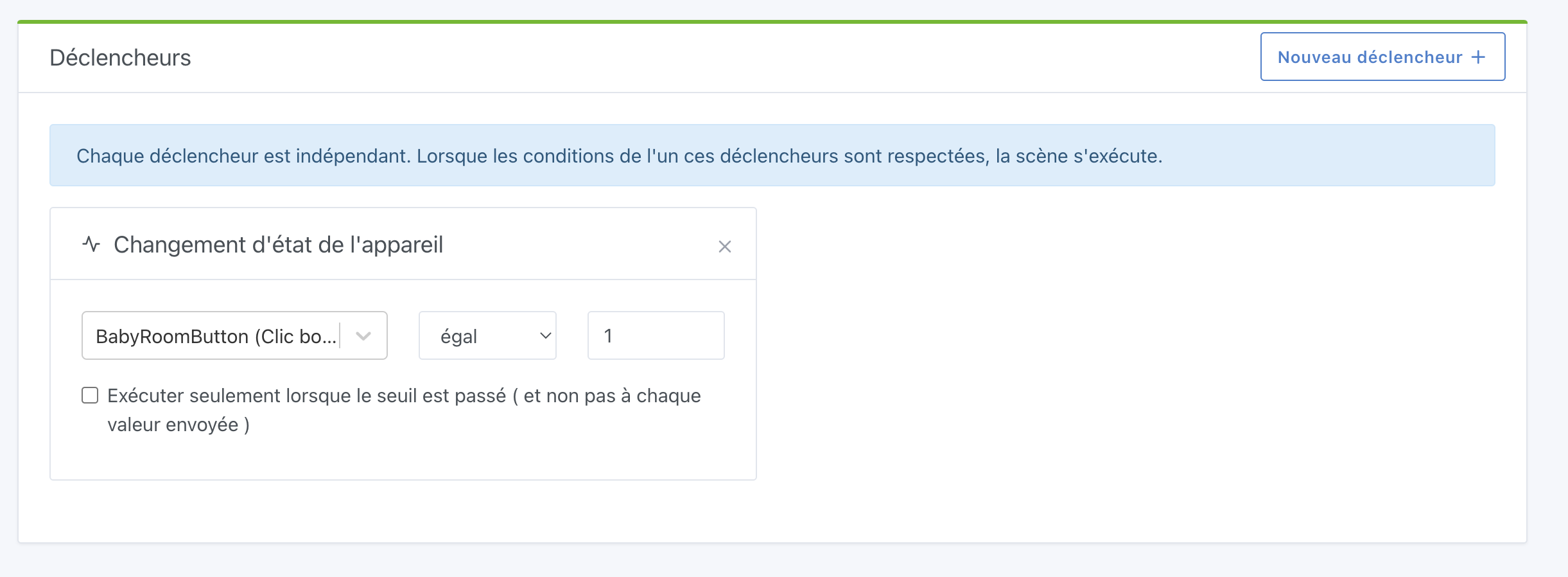
Then add the action: Make an HTTP request
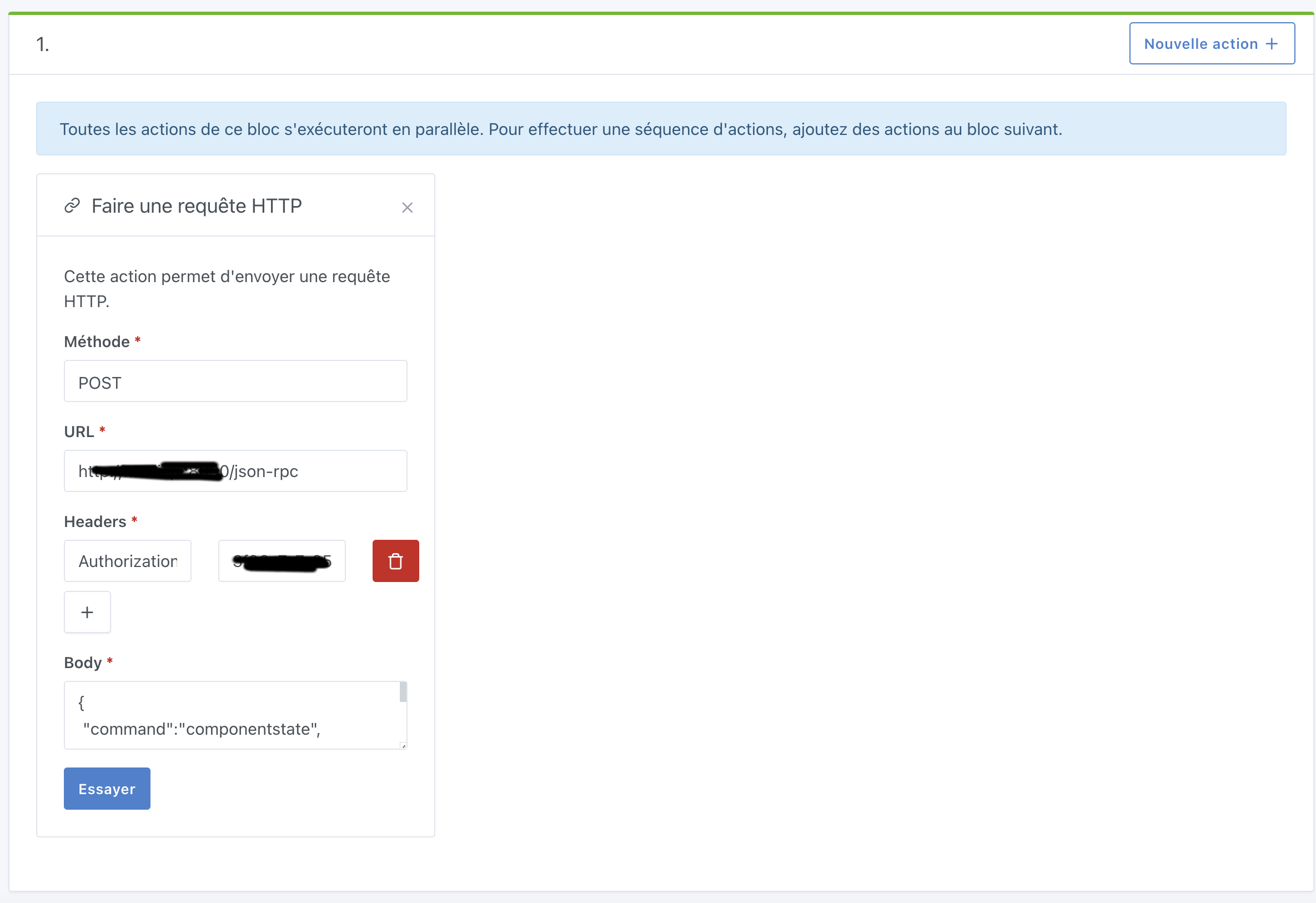
Method: POST
URL: http://[your-hyperion-instance-url]/json-rpc or http://[ip-of-your-hyperion-instance]:[port]/json-rpc
Header: Add a header named Authorization with the value being the token generated earlier
Body:
{
 "command":"componentstate",
 "componentstate":{
   "component":"LEDDEVICE",
   "state":true
 }
}
To turn off, repeat the previous steps by changing the button value to 2 for the double click for example and replace in the HTTP request Body « state »:true with « state »:false.
Second Solution
I no longer need to use the button personally because I connected my TV in Node-RED.
In Node-RED, I installed the library: node-red-contrib-samsung-tv-control
My workflow is as follows:
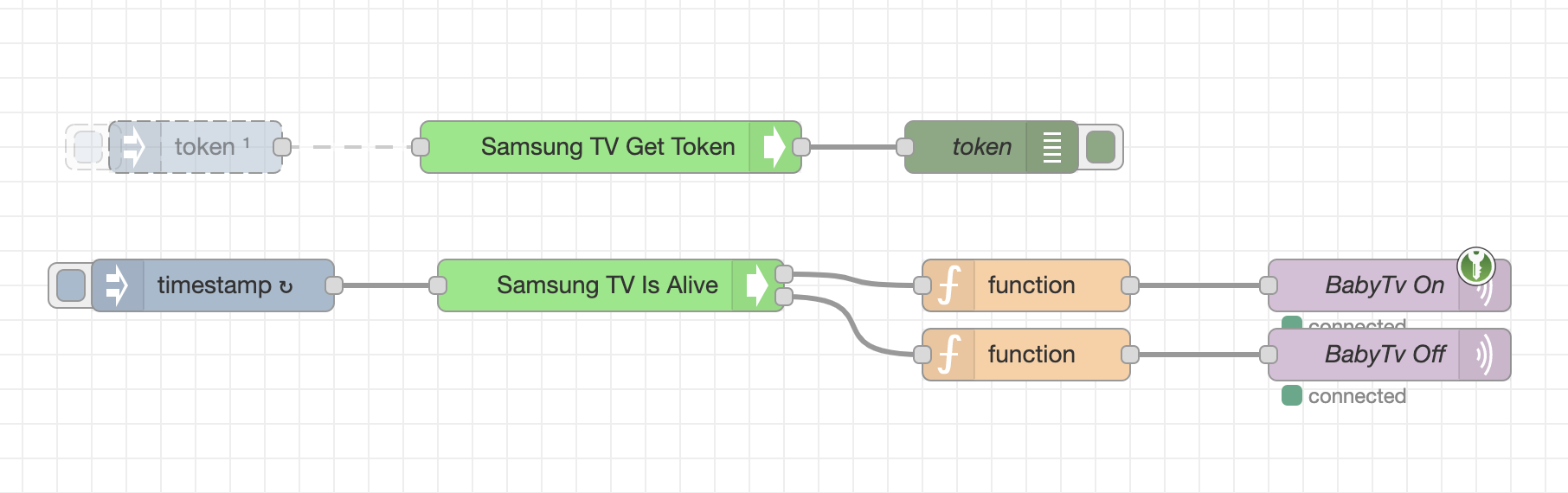
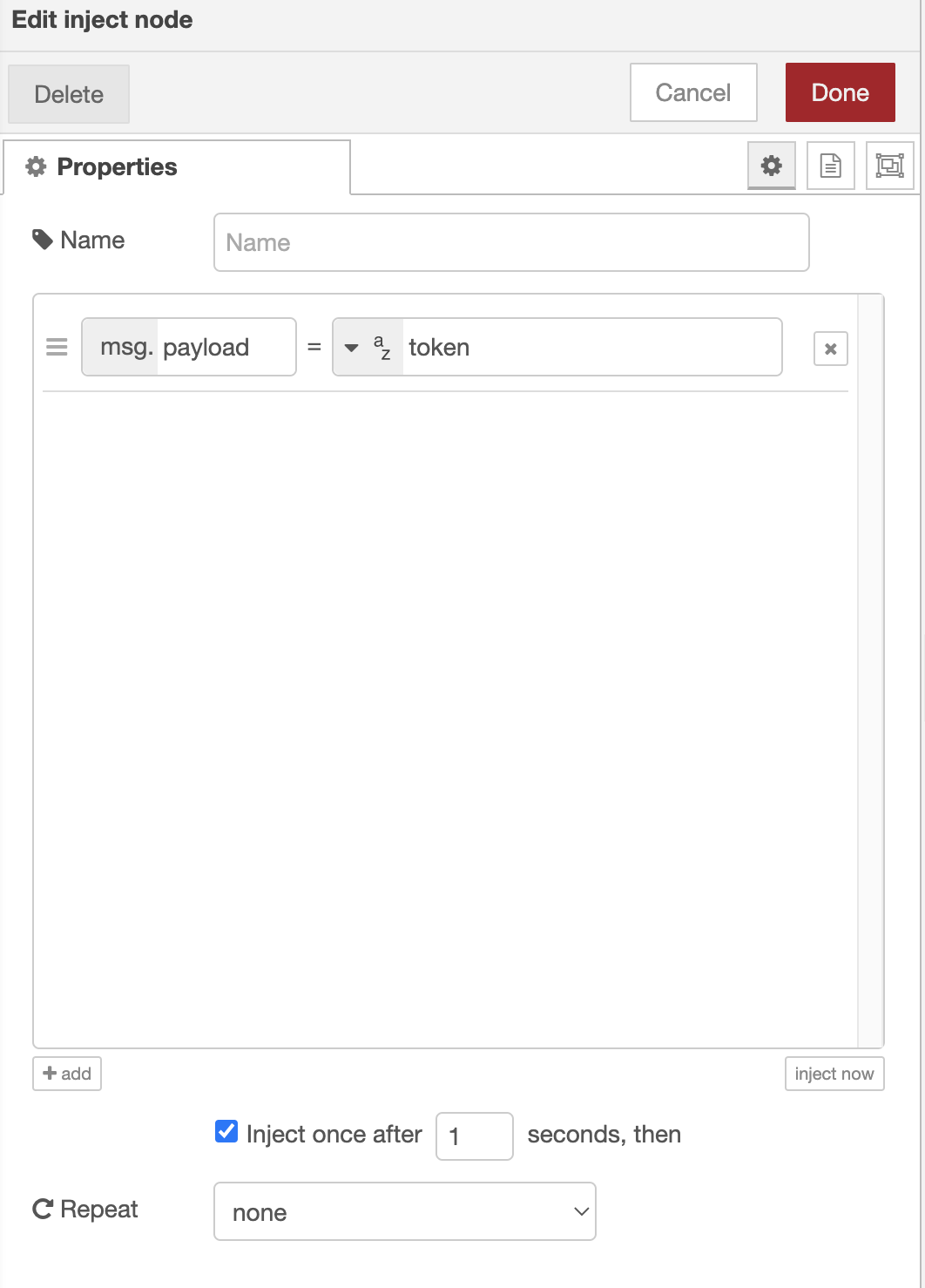
The first line needs to be executed once to retrieve the TV token and communicate with it, for that we have a first node
The second node will allow retrieving the token; for this one you must configure a device
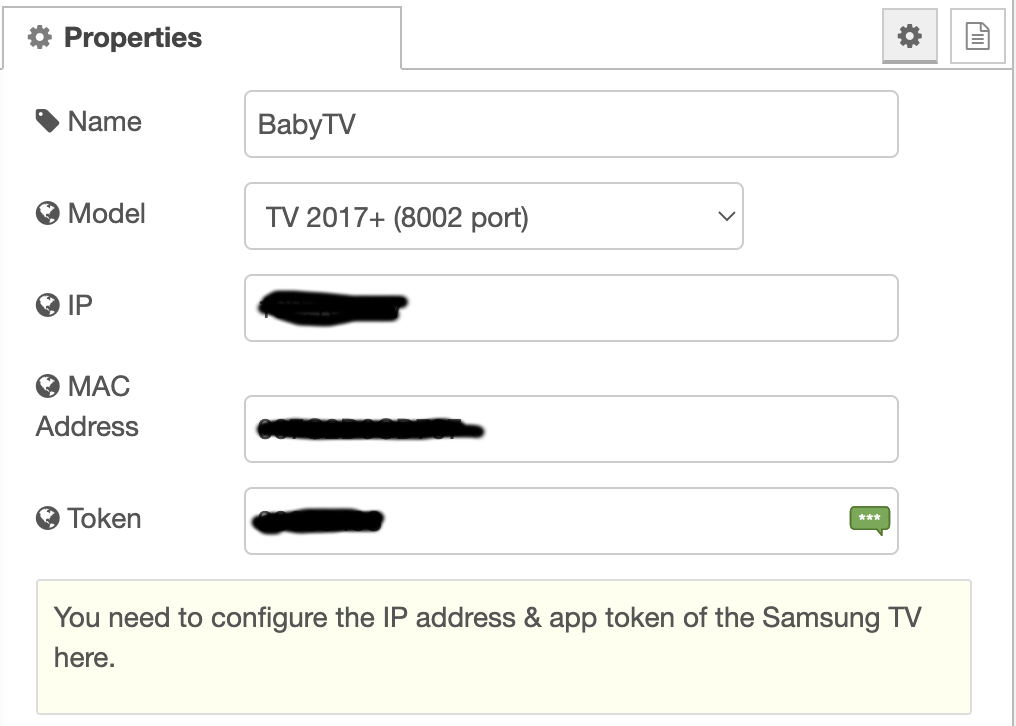
You enter your TV’s IP and MAC address and leave the Token field empty which you will retrieve afterwards.
The third node displays the TV token in the Node-RED console.
Once this configuration is done you can run your template ensuring the TV is turned on.
On the TV, you will get a prompt to authorize a device to take control of the TV, you must accept with your remote.
Once the token is retrieved you can update the Token field in your device configuration. You can then disable the first node to avoid requesting a token from your TV at every template execution.
Now we’ll go back into Gladys to create an MQTT device to get the TV state.

So we create a device of type sensor with a value of 0 or 1.
Back in Node-RED.
The second flow for the TV uses the SamsungTV Is Alive box; to trigger it we use an Inject node that will run every 30 seconds to get the TV state and send it to the MQTT topic
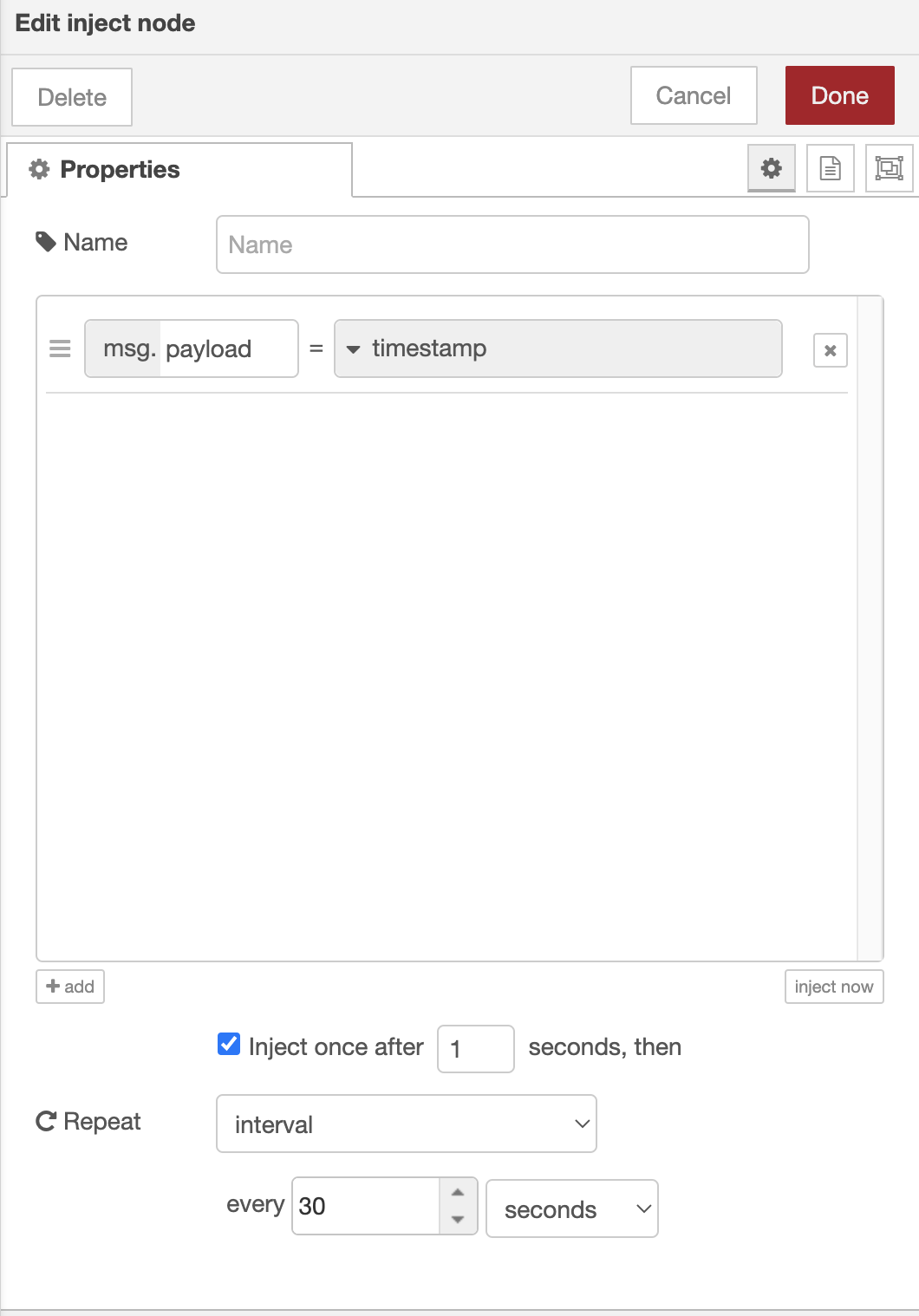
The SamsungTV Is Alive box has two outputs: one for 0 and one for 1. To send it on the MQTT topic you need to perform a small transformation, hence the use of a function node
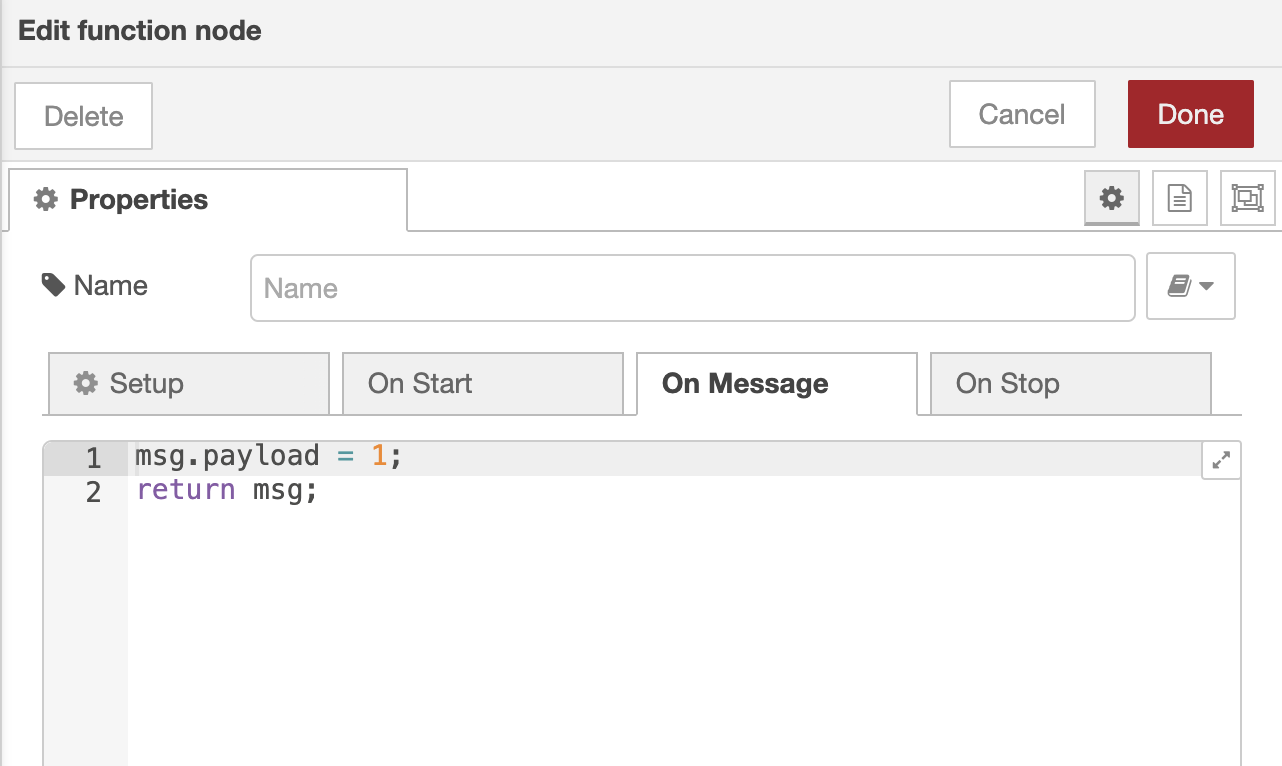
Here for the 1 output, we perform the same manipulation with msg.payload = 0 for the 0 output.
Now that we have retrieved the TV state in Gladys we can recreate a scene as before except that instead of the button we will use our fake MQTT device as the device state change.
Be sure to check the box: Execute only when the threshold is crossed (and not on every value sent)
Otherwise we will send a request every 30 seconds to Hyperion and this might make it crash.
And that’s it, you can enjoy your Ambilight without needing to use your phone to turn it on or off.