@cicoub13 and @Isage,
indeed, it’s true that the MQTT mode of operation is specific to Gladys and that it has a syntax outside the protocol (it’s a technical reason specific to Gladys; I recall discussing it with @pierre-gilles) and in your case it publishes
so @Isage is forced to use Node-RED (@Isage you can be crafty by creating a flow
with an mqtt-in component to an mqtt-out and a transfer node.
the mqtt-in listens to « gladys/master/device/mqtt:sirene/feature/mqtt:/text » or you put instead of text « Heiman-on » for example so « gladys/master/device/mqtt:sirene/feature/mqtt:/Heiman-on » and your transfer function transforms it into {"warning": {"duration": 10, "mode": "emergency", "strobe": false}} and same in the other direction
It would be nice to have in Gladys the possibility to create an MQTT device (in the MQTT integration) that would act as a pure MQTT bridge and interface between pure MQTT and Gladys’ standard MQTT. I’ll make a request, I think this could be interesting in this kind of case!
Hi @cce66
I think I followed your tutorial well, but I’m stuck on port 1883.
Could you give me the commands to find and open the « configuration.yaml »?
Thanks
Port 1883 is the MQTT broker port of the MQTT container — these are the settings you can find in Gladys as indicated in the documentation.
Port 1884 is the MQTT broker port of the Zigbee2Mqtt container; it’s indeed more complicated to retrieve the username (when it’s deployed by Gladys it’s « gladys » by default) and the password of the zigbee2Mqtt container, and that password is located in the configuration.yaml file. (I struggled because of that — at first I thought everything went through the first one I hadn’t realized that the first one was used for Gladys’s operation with its own syntax which is due to its mode of operation; it’s likely that commercial gateways work the same way internally and that the second is the gateway between the Zigbee protocol and the MQTT protocol which in this case is standard, well if I understood everything correctly this time! )
So the question to be able to help you is: on which system did you install it, NAS or Linux? On Linux I know how; for a NAS, since I don’t have one I can’t really help except that there should be a file manager (normally the case on Syno) or SSH access (there it should be the same as for Linux — most NAS are based on that system)

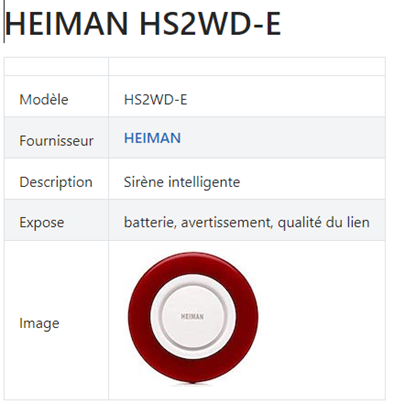
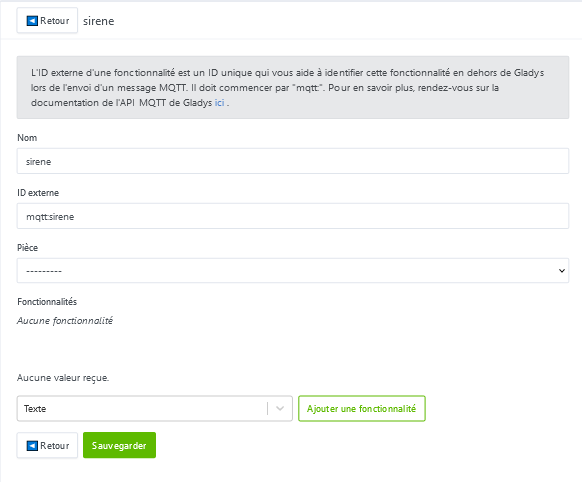
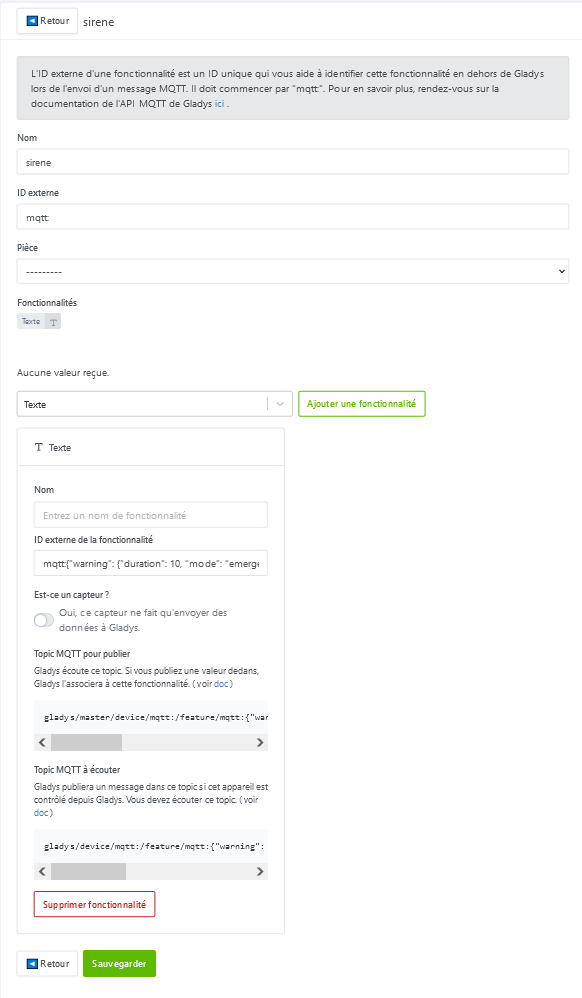


 ), now all that’s left is to vote!

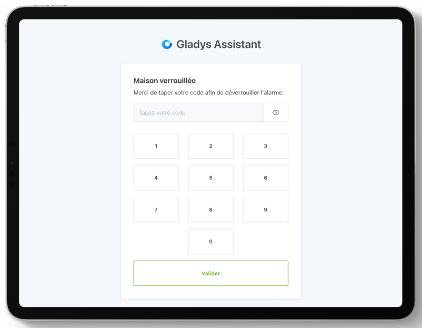
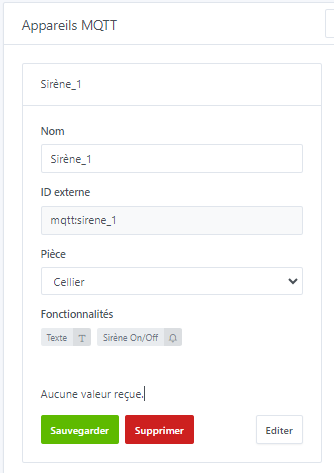
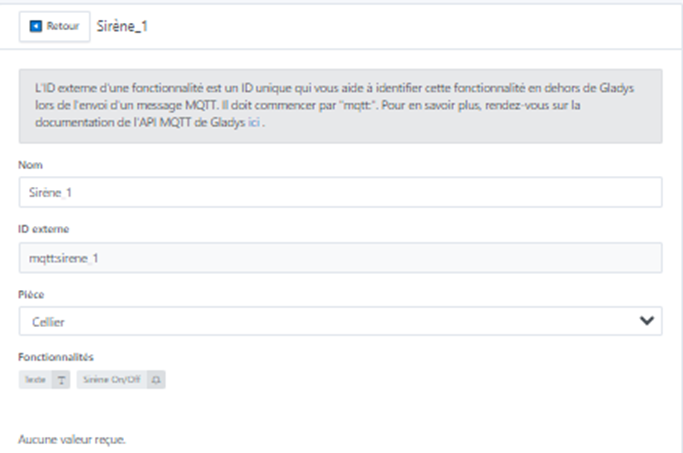
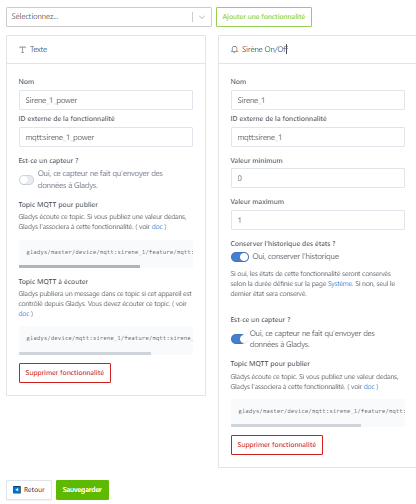
 )
)