How to use the LANmanager integration to determine the presence of a device (and probably its owner) on the local network?
First of all, what’s it for?
Determining someone’s presence (an authorized person) in the house allows many scenarios to be activated such as heating control, lighting or home security.
In Gladys Assistant, managing presence detection can be done, among other things, thanks to the devices associated with an inhabitant present on the network (a smartphone or a car on the WiFi network, a powered-on computer connected to the wired network…).
1. Prerequisites
It’s preferable to know, at minimum, the MAC address of the device that must be detected. This address is UNIQUE and therefore corresponds to a single device.
Finding this address depends on the device. I encourage you to look it up. For smartphones, it is often indicated on the box but can also be found in the device settings. For example, on Android, simply click on the WiFi network you are connected to:
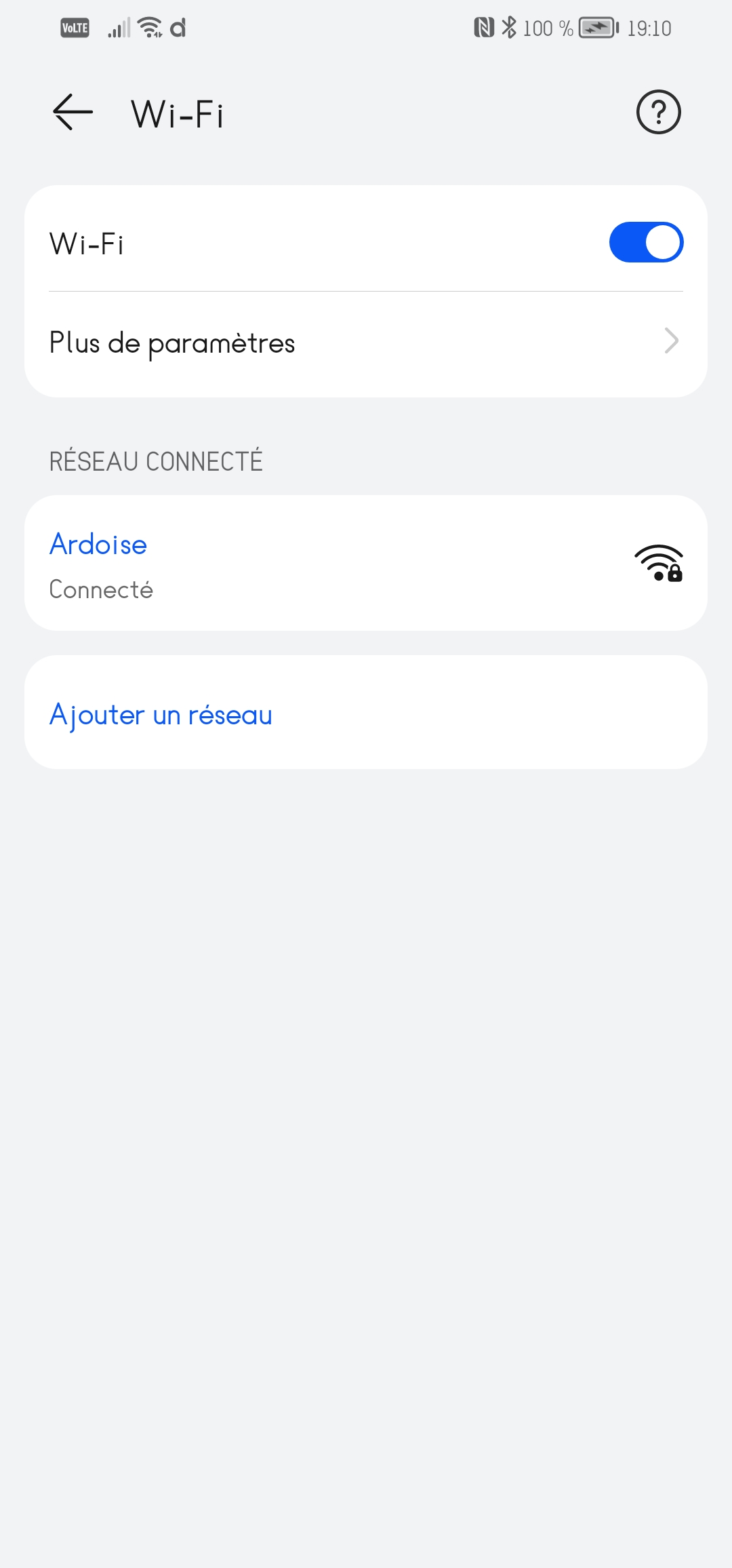
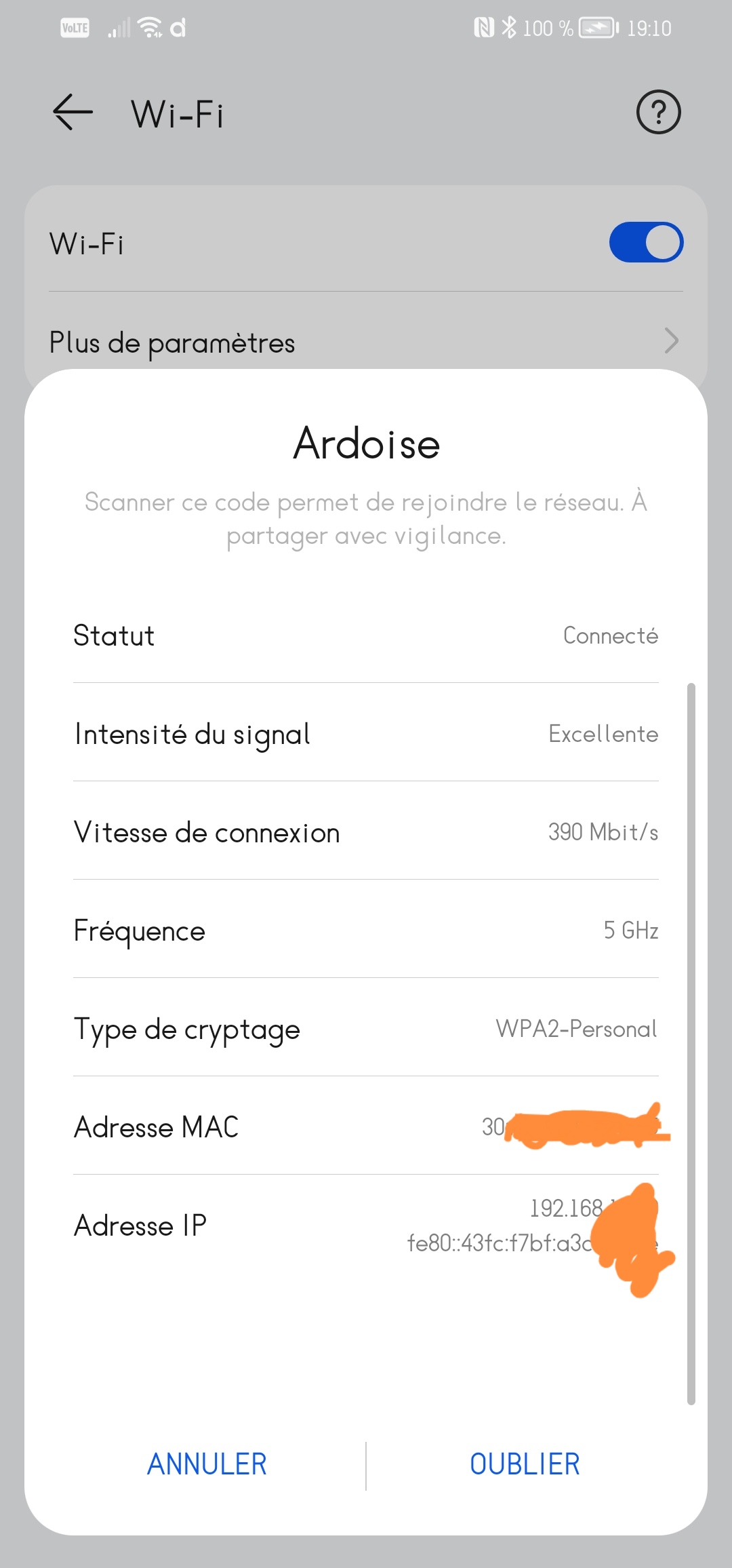
If you can’t find your device’s MAC address, don’t worry!
2. The integration
Then go to the LANmanager integration
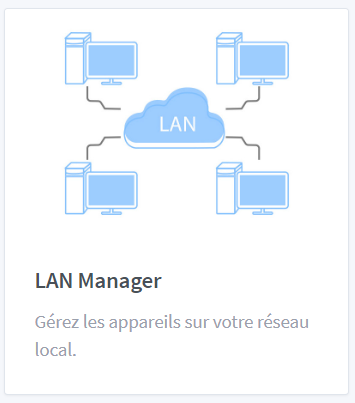
Click on « Discovery »
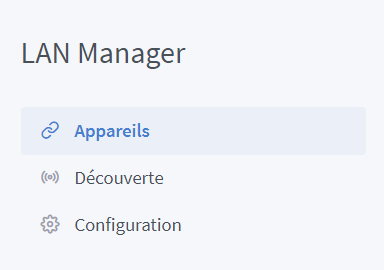
Then on « Search on the network »
When your device appears, give it a clear name then click « Save ».
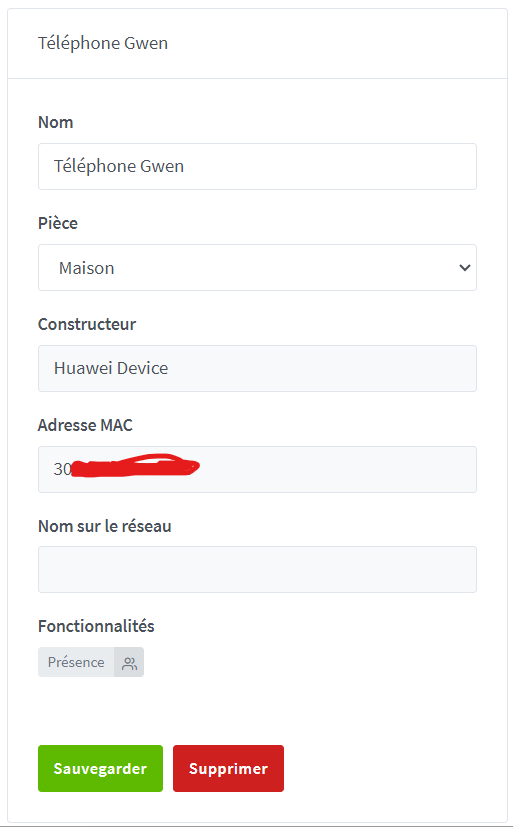
Do the same with the other devices you want to add then head to the « scenes » tab
Troubleshoot: Sometimes the device isn’t found on the first try. Check that it is connected to the same network (the same access point) and that this banner has not appeared:

If so, click on « New devices available » to display them!
3. The scenes
Yes, there are at least two to create to explain to Gladys Assistant what to do with the device detection (associate the presence of the device with that of a user)
First scene to create:
Choose a clear name and a nice little icon. Then, in the triggers:
- Scheduled trigger: Interval 8 minutes (to be adjusted depending on the devices)
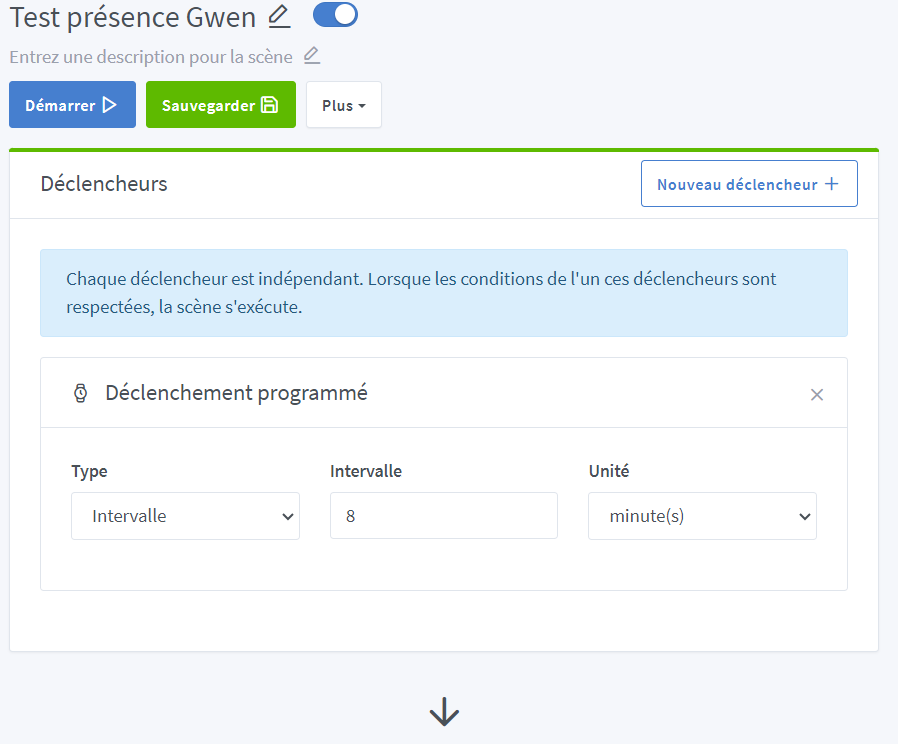
Then, as the first step:
-
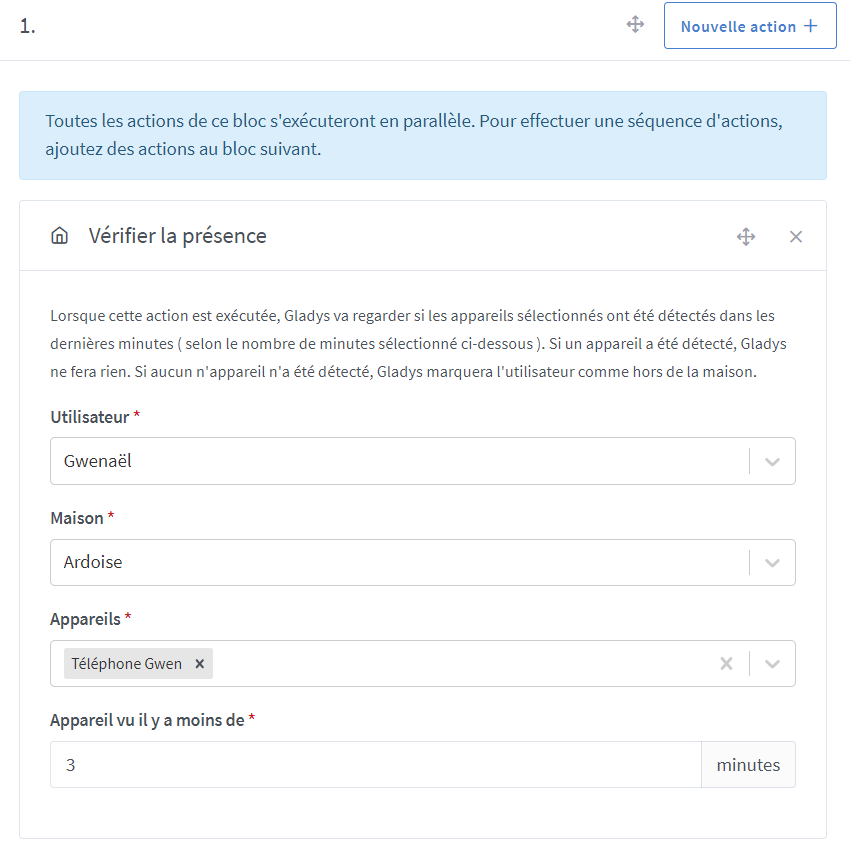
Check user’s presence: choose the concerned user, the house and the device to associate and the time « device seen less than » 3 minutes (to be refined if needed)
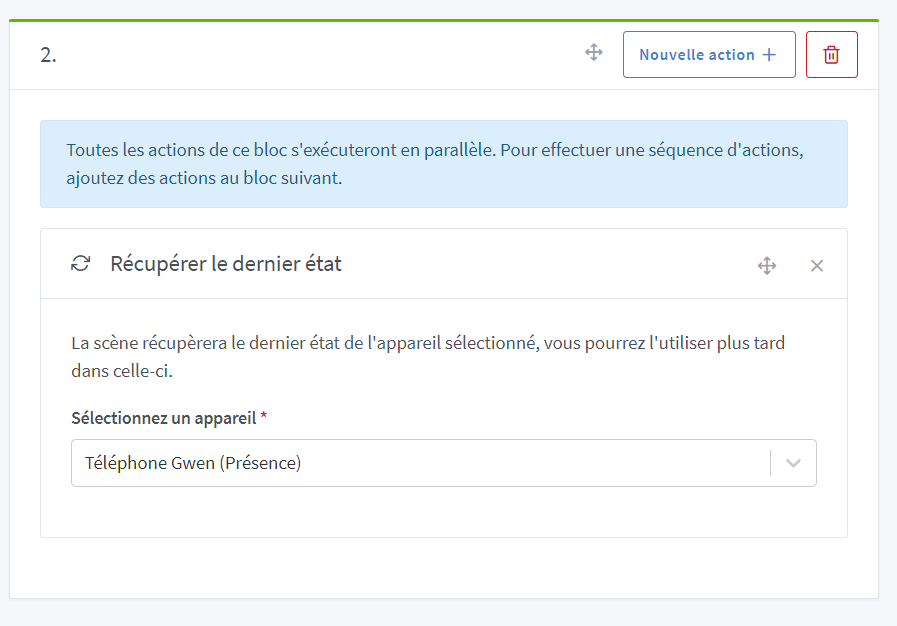
Then, -
Get the last state (of the device - the phone)
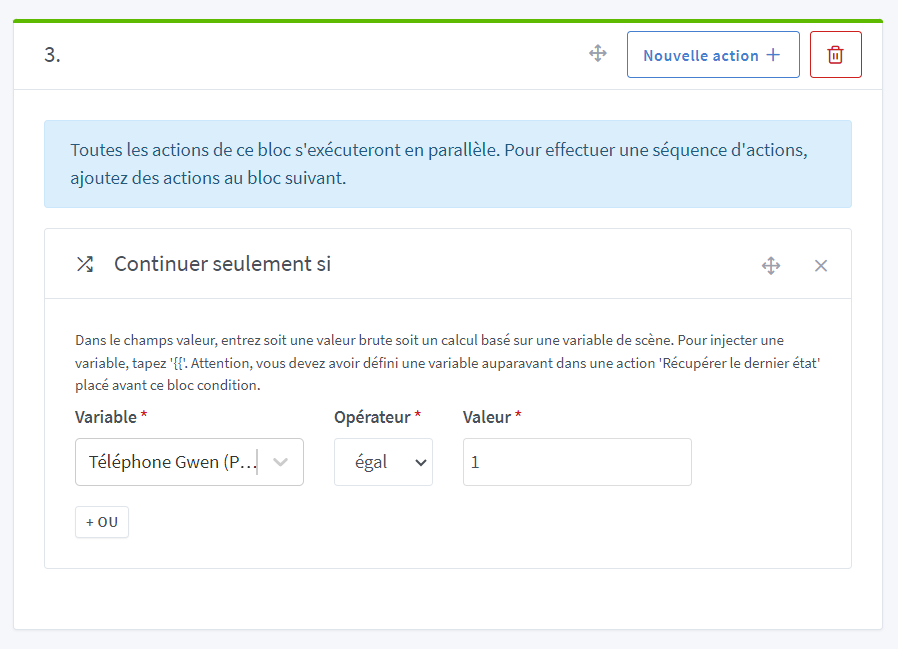
-
Continue only if phone = 1
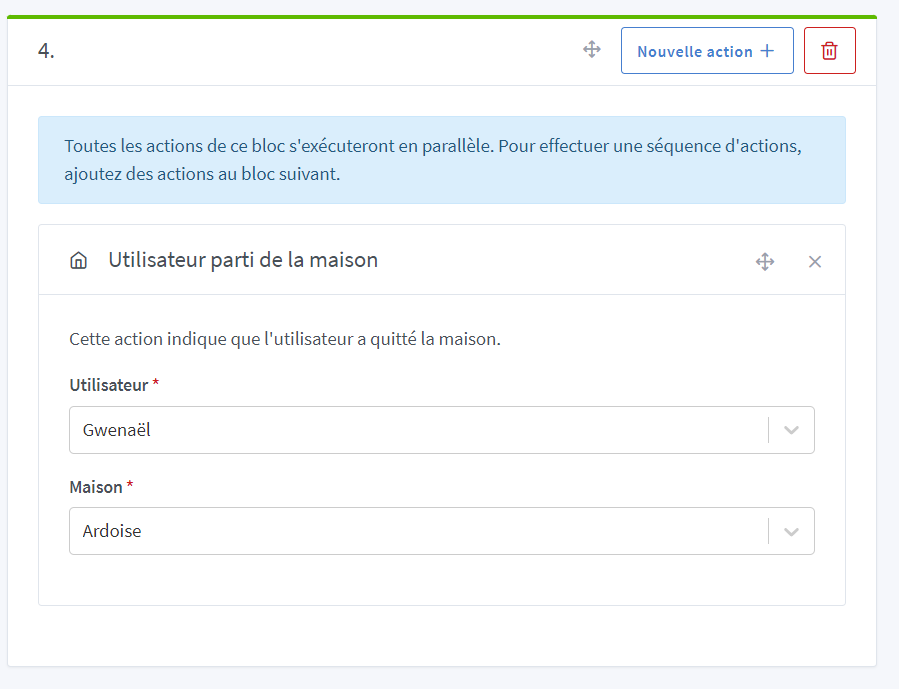
-
User LEFT the house
-
Save your scene!
Second scene:
Choose a nice name and a nice icon then, as trigger:
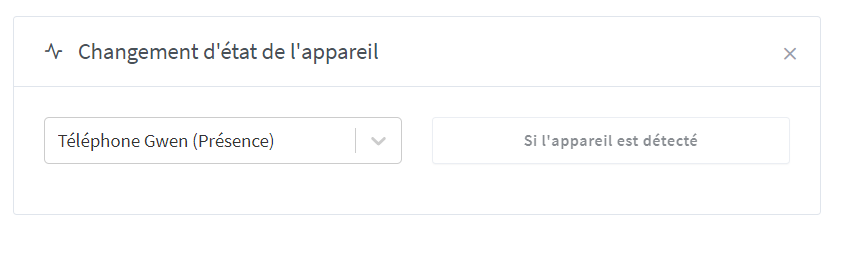
- Device state change: Phone (presence) « If the device is detected »
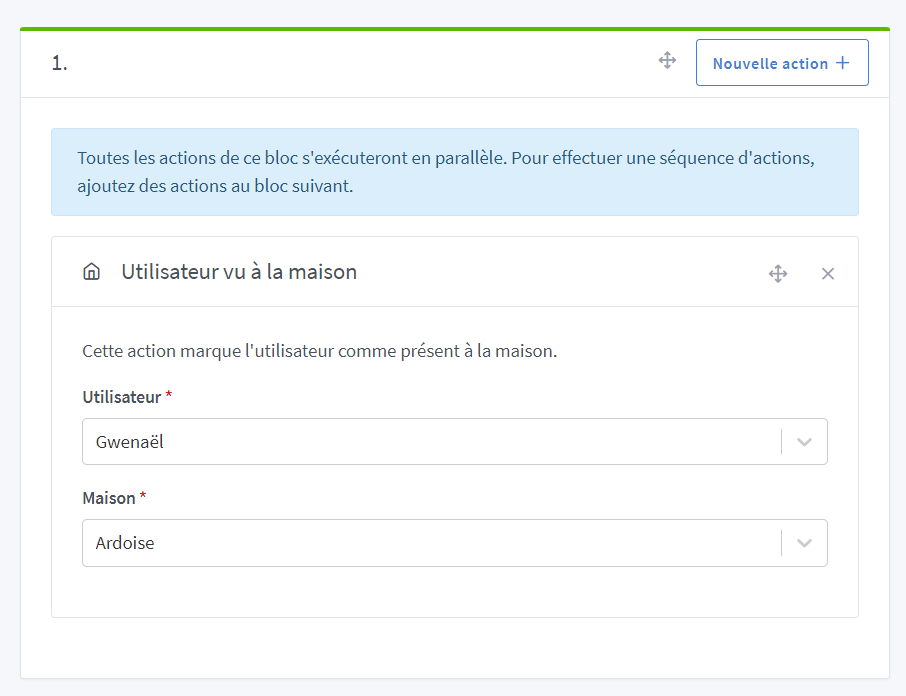
And as the first action:
- User seen at home
Don’t forget to save your scene!
And there you go!
What to do with this? Turn the alarm on and turn off the heating when you leave and the opposite when you return, for example!
Troubleshoot2: Some devices have, for « security » reasons, a « Random MAC address » option. It goes without saying that this option must be disabled for detection to work!


